
Google Drive makes it easy to share a proposal with a client, send records to an accountant, or let an outside consultant work inside a project folder. The problem is not external sharing itself. The problem is losing track of which files are still shared, who can reach them, and whether that access still has a business reason.
For a Milwaukee professional-services firm, a useful Google Drive external sharing audit should answer four questions: What is exposed outside the company? Who owns it? Why is the access still needed? What should be changed without interrupting legitimate work?
Google added enhanced external-sharing fields to Drive Inventory Reporting in August 2026. For organizations with a supported edition, the new fields can make that review more complete by consolidating direct permissions, group access, service accounts, and public links into clearer signals. It is a strong reporting option, but it is not available in every Google Workspace plan and it is not a substitute for business judgment.
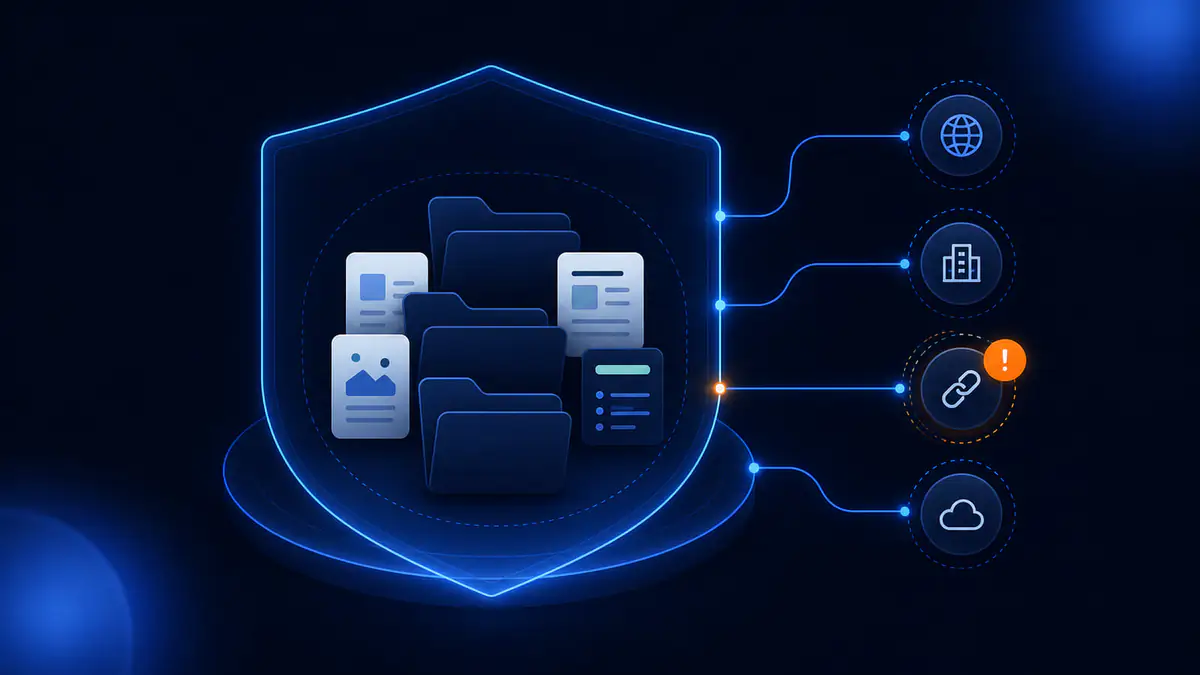
External sharing is not automatically a security problem
Many offices need to collaborate with people outside their Google Workspace domain. An accounting firm may exchange tax documents with a client. An engineering office may share a project folder with a contractor. A law firm may provide selected records to co-counsel. Blocking every external share would interfere with normal work.
The risk appears when access outlives its purpose or nobody owns the decision anymore. Common examples include:
- A former vendor still has access to a shared folder.
- A file was shared with a personal Gmail account because it was convenient at the time.
- A Google Group includes outside members that the file owner does not know about.
- A link allows broader access than the owner intended.
- A service account can reach data after the related application or integration has been retired.
- A file carrying a sensitive-data label is also available outside the organization.
These situations are hard to evaluate one file at a time. The owner may remember sharing the file, but not every group member, inherited permission, or public link connected to it.
Why a manual spot check misses the real picture
Opening a few important folders and reviewing the Share button is better than doing nothing, but it does not establish a complete inventory. Files can be spread across individual My Drives and shared drives. Access may come from a direct invitation, a group, a domain-level permission, or a link. Some permissions are inherited from a shared-drive structure rather than added to the file itself.
There is also a difference between an inventory and an activity log.
An inventory answers, "What access exists now?" An activity log answers, "What happened during a period of time?" Both can be useful, but one does not replace the other. A sharing event from months ago may no longer appear in the available activity window even though the permission still exists. Conversely, a current inventory will not explain the full history behind every permission.
Google's Drive log events documentation explains how administrators can search recorded Drive activity, subject to edition, retention, and logging limits. That is useful for investigating a specific change. A complete external-access review needs a current permission inventory as well.
What Google's enhanced Drive inventory can show
Google announced its enhanced external-sharing fields on August 17, 2026, with rollout beginning on August 14. According to the Google Workspace update, the reporting can consolidate direct permissions, group memberships, and public links. It can also distinguish human users from service accounts and identify files published to the web.
The underlying Drive inventory schema includes fields that can help answer practical audit questions:
- Does the file have any external sharing?
- Is it shared externally with people rather than only service accounts?
- Is it published outside the organization?
- Is it shared with everyone?
- Which external users, groups, domains, or service accounts have access?
- Is access currently blocked by a policy control?
- Does the file match a data loss prevention rule?
The export is metadata, not a copy of file contents. Google states that it can include information such as file ownership, size, labels, permissions, and sharing details. That is enough to build a review queue without opening every document.
There are important limits. Drive Inventory Reporting uses BigQuery, requires billing for the Google Cloud project, and is available only with the editions listed in Google's Drive inventory export documentation. As of the August 2026 announcement, the enhanced fields are supported for Enterprise Standard, Enterprise Plus, Education Standard, Education Plus, Frontline Plus, Enterprise Essentials Plus, and Cloud Identity Premium. The new external-sharing calculation is off by default. Google also notes that large groups can increase processing time.
A business should confirm its edition and likely reporting cost before treating this as the answer. If the current plan does not support Drive Inventory Reporting, administrators can still use the reporting and audit features included with their edition, review high-risk shared drives, and tighten sharing settings. The process may be more manual, but the business questions do not change.
A practical Google Drive external sharing audit
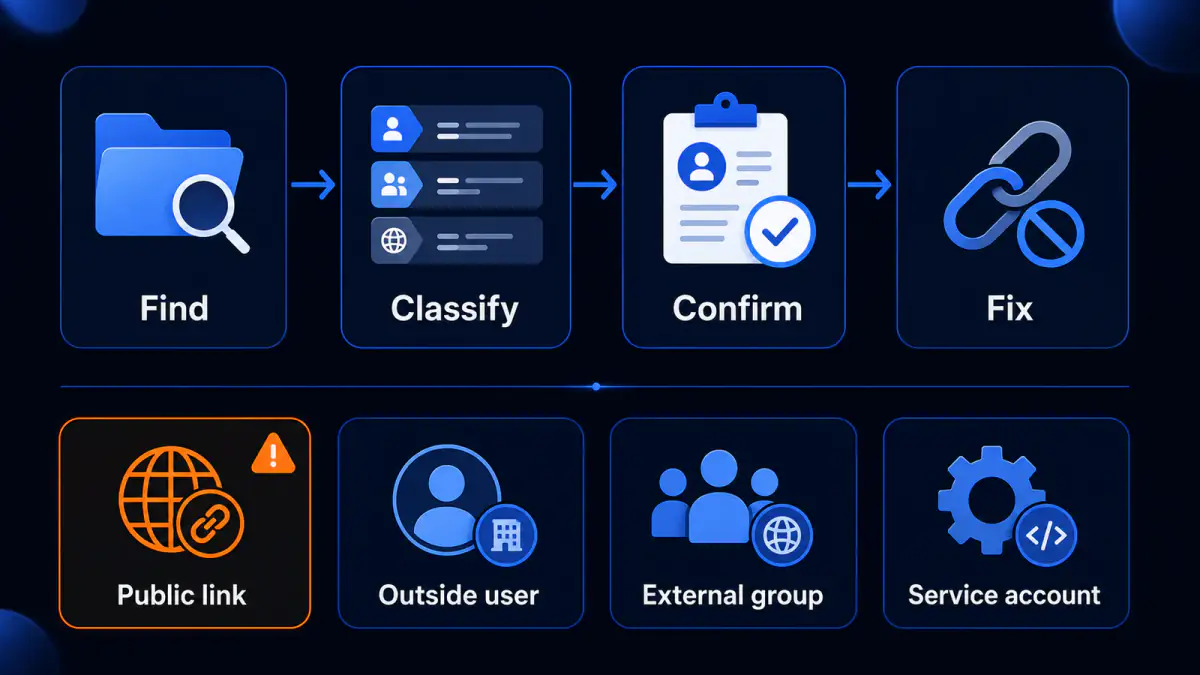
A useful audit should end with decisions, not a giant spreadsheet that nobody reviews. The smallest workable process has six steps.
1. Define what deserves attention first
Start with data that would create the most trouble if it reached the wrong person. That may include client records, tax documents, legal files, employee information, financial reports, credentials, internal pricing, or confidential project material.
If the organization uses Drive labels or data loss prevention rules, include them in the review. If it does not, identify the shared drives, owners, departments, or file types most likely to contain sensitive information.
2. Build the current access inventory
Use Drive Inventory Reporting when the edition and need justify it. Otherwise, collect the best available reports and review the most important shared drives directly.
At minimum, record:
- File or folder name and location
- Business owner
- Internal or external access
- External email address, group, domain, or service account
- Permission level
- Public or broad-link status
- Sensitive-data label or category, if used
- Last review date
Do not treat the technical file owner as the automatic decision-maker. The correct owner may be a department leader, project manager, records custodian, or partner who understands why the file exists.
3. Separate broad exposure from expected collaboration
Review the highest-risk cases first:
- Publicly published files or links available to everyone
- Sensitive files with external access
- Access granted through an external group or unknown domain
- Personal email accounts
- Service accounts without a current application owner
- Old client, contractor, or vendor access
A known client with read-only access to an active project folder is different from an unknown personal account with editing rights to a shared drive. The report can identify the permission, but someone who understands the work must decide whether it is appropriate.
4. Confirm purpose and ownership
For each questionable permission, ask:
- What business process requires this access?
- Who approved it?
- Does the recipient still work on the matter?
- Is the permission broader than necessary?
- Could a dedicated folder replace access to a larger shared drive?
- Should the access expire or be reviewed on a set date?
- Does a contract, privacy obligation, or records policy affect the decision?
If nobody can explain why access exists, that is a finding. It does not always mean "remove it immediately," because an unexplained permission may still support a live workflow. It means the business needs an owner and a decision.
5. Remove or narrow access carefully
Fix the clearest problems first, such as obsolete personal accounts, retired service accounts, and public links with no valid purpose. For legitimate collaboration, reduce access to the smallest useful scope. That may mean changing edit access to view access, sharing a dedicated folder instead of an entire drive, or replacing a broad group with named recipients.
Before changing access to an active client or vendor workspace, confirm the workflow and tell the affected owner. A security cleanup that blocks a filing deadline or project handoff is not a successful cleanup.
6. Keep evidence and repeat the review
Record what was reviewed, who approved each exception, what changed, and when the next review is due. This creates a usable trail for management, cyber-insurance discussions, client security questionnaires, and compliance reviews without pretending that the report alone proves compliance.
The review frequency should match the business. An office that shares sensitive client files with many outside parties may need a different schedule than one with limited external collaboration. Staff departures, vendor changes, major projects, and reorganizations are also good triggers for a targeted review.
Questions an owner or office manager should be able to answer
You do not need to know BigQuery or understand every Google Workspace permission field. You should be able to get clear answers to these questions:
- Which company files are currently accessible outside our domain?
- Which of those files contain sensitive business, employee, or client information?
- Who is responsible for approving each external relationship?
- Can we distinguish public links, outside users, groups, and service accounts?
- What happens when a client engagement ends or a vendor is replaced?
- Which Google Workspace edition do we have, and what reporting does it include?
- Can we produce evidence showing what was reviewed and corrected?
If those answers require several people to search through individual accounts, the problem is not merely a missing report. The organization lacks a clear ownership process for shared data.
How Manage IT can help
Manage IT can help a Milwaukee-area business review its Google Workspace edition, identify the reporting options available, organize external-access findings, and plan permission changes around real client and staff workflows. The goal is not to block collaboration. It is to make external access visible, owned, and limited to a current business need.
If you are not sure which Google Drive files are still shared outside your company, Manage IT can help you review the available Workspace reports and turn the findings into a practical access-cleanup plan.
Final thoughts
Start with one fact: obtain a current list of externally accessible Drive content, using Drive Inventory Reporting or the best reporting available in your edition. Then give each meaningful exception a business owner.
That is the difference between "we think our files are private" and a review the company can explain.
Sources
- Google Workspace Updates — Enhanced external sharing insights now available in Drive Inventory Reporting
- Google Workspace Admin Help — Export your organization's Drive inventory
- Google Workspace Admin Help — Schema and example queries for Drive inventory exports in BigQuery
- Google Workspace Admin Help — Drive log events

Powerful IT Systems · Sussex, WI
Master's degree in Computer Science with 15+ years of hands-on IT experience serving Milwaukee-area businesses.