Most phishing emails are not genius hacking. They are speed traps.
They try to make you click before you slow down. Reset this password. Open this invoice. Approve this payment. Buy these gift cards. Confirm this login. The message usually looks normal enough that a busy person can miss the warning signs.
The screenshots below are recreated training examples based on phishing patterns businesses see all the time. They are not customer emails, and the domains shown are safe examples.
The 30-second phishing check
Before you click a link or open an attachment, ask six questions:
- Do I recognize the actual email address, not just the display name?
- Was I expecting this message, invoice, document, password reset, or payment request?
- Does the link go to the real website?
- Is the email pushing urgency, secrecy, fear, or embarrassment?
- Is it asking for a password, MFA code, bank change, payroll change, gift card, or wire transfer?
- Can I verify it another way, such as a phone call, Teams message, vendor portal, or known website?
If two or more answers feel off, do not click. Report it or ask IT to review it.
Example 1: The fake Microsoft 365 password email
This is one of the most common phishing themes: your password is about to expire, your mailbox will be locked, or your account needs to be verified.
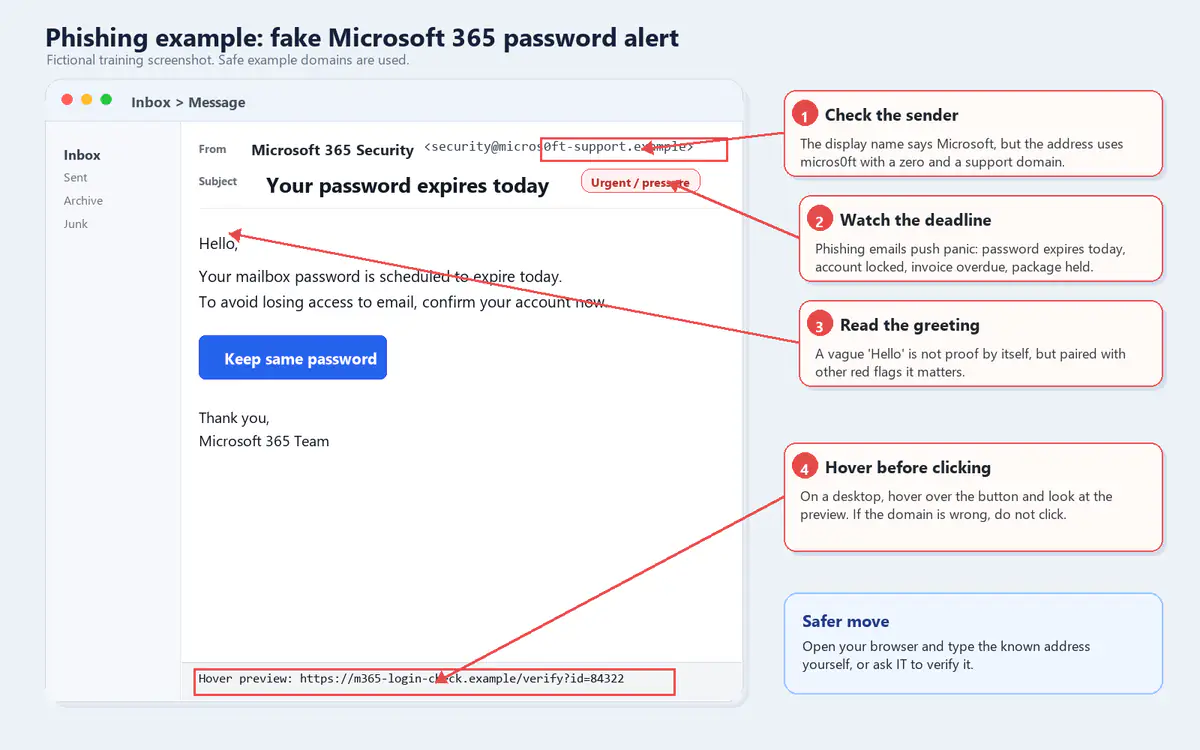
The red flags:
- The display name says Microsoft 365 Security, but the actual address is not a Microsoft domain.
- The domain uses a lookalike spelling: micros0ft with a zero instead of an O.
- The subject line creates pressure: "Your password expires today."
- The greeting is generic.
- Hovering over the button shows a different login site.
A real Microsoft sign-in link should go to a Microsoft-owned domain, such as microsoft.com, office.com, or login.microsoftonline.com. Even then, the safer move is to open your browser and type the address yourself instead of using the link in the email.
Also, if your company uses an IT provider or internal IT team, password notices usually follow a known pattern. If the wording looks new, strange, or more dramatic than usual, pause.
Example 2: The fake invoice or secure document
Invoice scams work because most offices deal with vendors, statements, purchase orders, shared documents, and payment requests every day. The email does not need to look perfect. It only needs to arrive when someone is busy.
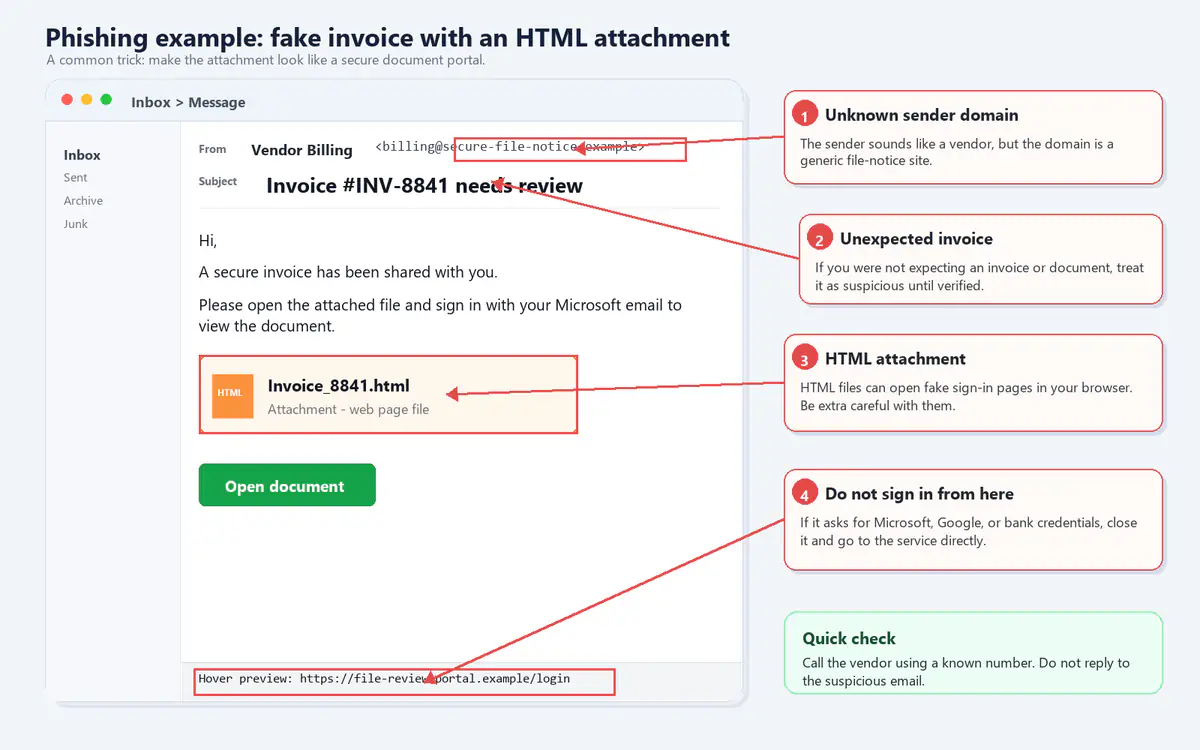
The red flags:
- The sender sounds like a vendor, but the domain is a generic file-notice domain.
- The invoice was not expected.
- The attachment is an HTML file. That can open a fake sign-in page in your browser.
- The message asks you to sign in with Microsoft credentials to view a document.
- The hover preview points to a file review site, not a known vendor portal.
Be especially careful with attachments ending in .html, .htm, .zip, .iso, .exe, or Office files asking you to enable macros. Some are harmless, but attackers use them often enough that they deserve extra scrutiny.
If you are not sure, do not reply to the email. Call the vendor using a phone number you already trust, or open the vendor portal from a saved bookmark.
Example 3: The boss, gift card, or urgent payment request
Not every phishing email has a bad link. Some are just social engineering.
A common version looks like it came from the owner, manager, pastor, principal, controller, or partner at the business. The email asks for a quick favor, gift cards, a wire transfer, a payroll update, or a bank account change. It may say the person is in a meeting and cannot talk.
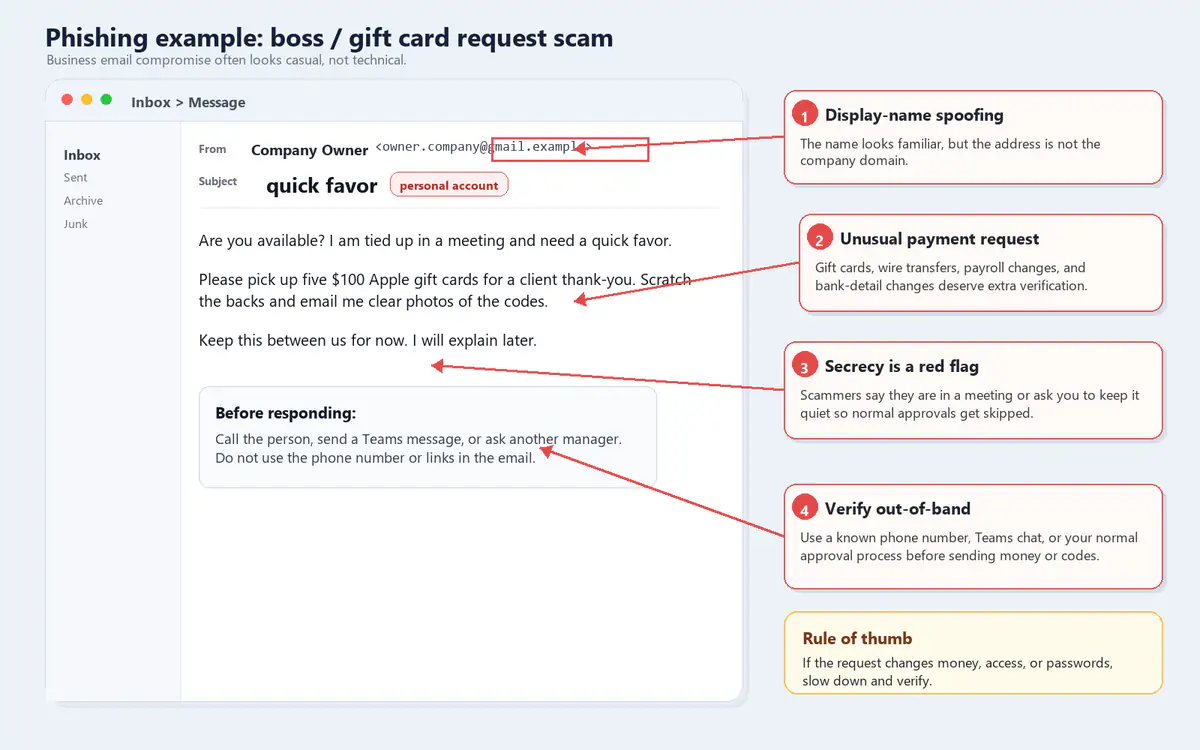
The red flags:
- The name looks familiar, but the email address is not the company domain.
- The request involves money or access.
- The message asks for secrecy or tries to bypass normal approvals.
- The sender gives you a reason not to call.
The rule is simple: if the request changes money, access, passwords, payroll, or bank details, verify out-of-band. Call a known number. Send a Teams message. Ask another manager. Do not use the phone number, link, or reply thread in the suspicious email.
How to hover over a link without clicking it
On a desktop computer, place your mouse over the link or button and do not click. Most email clients and browsers will show the real destination in a preview area near the bottom of the window.
Look for the real domain. In a URL like this:
https://login.microsoftonline.com/common/oauth2/...The important part is login.microsoftonline.com.
In a URL like this:
https://microsoft-security-login.example.com/resetThe real domain is example.com, not Microsoft. Attackers often put trusted words at the beginning of a fake domain because they know people skim.
A few things to watch for:
- Misspellings: micros0ft, paypa1, docuslgn
- Extra words: microsoft-password-reset, secure-bank-login
- Strange endings: .ru, .top, .zip, or a domain you do not recognize
- Short links: bit.ly, tinyurl, or other link shorteners in unexpected business emails
- QR codes that take the check away from your computer security tools
On a phone, hovering is not reliable. A long-press can sometimes preview a link, but it is easy to tap by accident. If you are unsure, do not use the link. Open the official app or type the known website manually.
What to do when an email looks suspicious
Do this:
- Do not click links, open attachments, scan QR codes, or reply.
- Use your company's Report Phishing button if you have one.
- If your IT team has a security mailbox or help desk, send it there. Forward as an attachment if your email client supports it.
- If it claims to be from a vendor, bank, Microsoft, Google, payroll provider, or shipping company, verify through the known website or a known phone number.
- Delete it after it has been reported or reviewed.
If you do not have an IT team, you can still report phishing:
- Forward phishing emails to the Anti-Phishing Working Group at reportphishing@apwg.org. APWG recommends forwarding as an attachment when possible.
- Report phishing attempts to the FTC at ReportFraud.ftc.gov.
- Forward phishing text messages to SPAM, which is 7726.
- If money was stolen or a business email account was compromised, file a report with the FBI Internet Crime Complaint Center at IC3.gov.
What if you already clicked?
Do not hide it. Fast reporting matters more than blame.
If you clicked a link, opened an attachment, entered a password, approved an MFA prompt, or sent money, contact IT immediately. Tell them exactly what happened and when.
Depending on what happened, IT may need to:
- Reset your password.
- Revoke active sign-in sessions.
- Check for mailbox forwarding rules.
- Review recent logins.
- Scan the computer.
- Contact the bank or payment provider.
- Warn other employees before the scam spreads.
If you entered a password, change it from a clean browser window by going directly to the real website. Do not use the link from the email. If you reused that password anywhere else, change it there too.
If you approved an MFA prompt you did not request, report it right away. Attackers often use repeated MFA prompts to wear people down.
A simple office rule that prevents a lot of damage
For normal emails, use the 30-second check.
For anything involving money, access, passwords, payroll, or bank information, require a second form of verification. Not a reply to the same email thread. Not a number from the email signature. Use a known phone number, Teams chat, vendor portal, or approval process.
That one habit stops a lot of scams.
Practical protections worth setting up
For a small business, phishing prevention should not depend only on employees noticing every bad email. People get busy. Good security adds backup layers.
Useful protections include:
- Multi-factor authentication for email and key business apps.
- A Report Phishing button in Outlook or Microsoft 365.
- Security awareness training with examples that match your business.
- Email filtering with attachment and link protection.
- SPF, DKIM, and DMARC records for your domain.
- Conditional access policies for Microsoft 365.
- Password managers, which can help spot fake login pages because they will not autofill on the wrong domain.
- Clear payment approval rules for wires, ACH changes, payroll changes, and gift cards.
- Backups and endpoint protection in case someone opens something malicious.
None of these make phishing disappear. They just make one bad click less likely to become a bad week.
Quick employee checklist
Print this or drop it into your internal handbook:
- Check the actual sender address.
- Hover over links on desktop before clicking.
- Do not trust urgency by itself.
- Be suspicious of unexpected attachments, especially HTML or ZIP files.
- Never share MFA codes.
- Do not approve MFA prompts you did not start.
- Verify money, payroll, password, and bank requests outside email.
- Use the Report Phishing button or send suspicious messages to IT.
- If you clicked, report it immediately.
Need help tightening this up?
If your office wants a phishing reporting button, Microsoft 365 security review, employee checklist, or better email protection, Manage IT can help set that up without turning it into a big complicated project.
The main goal is simple: make it easy for employees to pause, verify, and report before a scam turns into downtime, stolen money, or a compromised mailbox.
FAQ
Is an email safe if it has HTTPS?
No. HTTPS only means the connection to that website is encrypted. A fake website can still use HTTPS.
Should I reply and ask if the email is real?
Usually no. If the sender is fake or compromised, replying keeps you inside the scam. Verify through a known phone number, known website, Teams message, or your IT team.
What if the email includes my name, company, or real vendor?
That can still be phishing. Attackers use public information, old data breaches, compromised mailboxes, and vendor lookalikes to make emails feel familiar.
Are QR codes safer than links?
No. QR codes can hide the destination and move the click from your protected work computer to your phone. Treat unexpected QR codes like suspicious links.
What is the biggest red flag?
Anything that asks you to change money, access, passwords, payroll, bank details, or MFA settings should be verified outside email.
Nazar Loshniv is the founder of Powerful IT Systems, a managed IT and cybersecurity firm based in Sussex, Wisconsin, serving small and midsized businesses across the Milwaukee metro and Southeast Wisconsin.

Powerful IT Systems · Sussex, WI
Hands-on IT experience serving Milwaukee-area businesses.