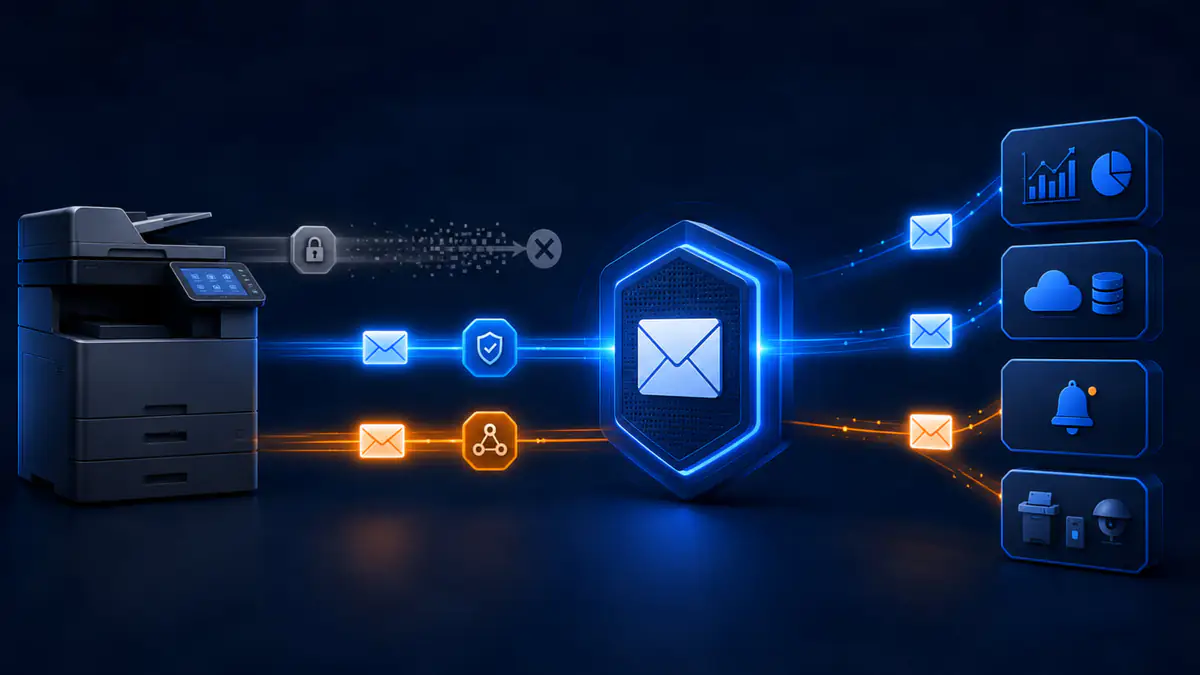
The copier scans a signed form and emails it to a shared mailbox. The accounting system sends invoices. A building system reports an alarm. A website application delivers a password reset. These small email workflows often run quietly for years, which is why businesses tend to discover them only after they stop.
Microsoft is retiring Basic authentication for SMTP AUTH in Exchange Online. SMTP itself is not disappearing, and Microsoft 365 will still support several ways for devices and applications to send mail. The risk is narrower: older equipment and software that signs in with only a Microsoft 365 username and password may need a different configuration, an update, or a replacement sending method.
The right first step is not to change every device. It is to find out which systems send email, how each one connects, and whether its method has a supported future.
Key Takeaways
- •SMTP is not ending, but password-only SMTP AUTH is on a retirement path.
- •Inventory scanners, copiers, applications, scripts, alerts, and legacy relays before changing anything.
- •Choose OAuth, a secured Microsoft 365 relay, Direct Send, or another managed sending service based on the workflow.
- •Test the full business process, including external delivery, attachments, logs, and failure visibility.
What is Microsoft changing?
SMTP AUTH is commonly used by scanners, multifunction printers, line-of-business applications, monitoring tools, and older software. A typical setup points the device to smtp.office365.com, usually on port 587, and stores a mailbox username and password.
When that username and password are sent as Basic authentication, the device depends on a sign-in method Microsoft is moving away from. Basic authentication is risky because credentials are repeatedly presented and are often stored on equipment that receives less security attention than an employee computer. It also does not fit cleanly with modern controls such as multifactor authentication.
Microsoft's current published timeline, updated in January 2026, says:
- From now through December 2026, SMTP AUTH Basic authentication behavior remains unchanged.
- At the end of December 2026, it will be disabled by default for existing tenants. Administrators will still be able to enable it when needed.
- For new tenants created after December 2026, SMTP AUTH Basic authentication will be unavailable by default. OAuth will be the supported authentication method.
- In the second half of 2027, Microsoft plans to announce the final removal date for SMTP AUTH Basic authentication.
That timeline provides more room than the earlier retirement plan, but it should not be treated as permission to wait. Re-enabling Basic authentication after it becomes disabled by default is a temporary compatibility choice, not a permanent migration plan.
Will your scanner or application stop sending?
It depends on how it sends mail today.
A device is most likely to need work if it uses all or most of the following:
smtp.office365.comas the outgoing server- Port 587 or 25 with authenticated client submission
- A Microsoft 365 mailbox username stored in the device
- A saved password or app password
- No OAuth or Modern authentication option
- Firmware or software that has not been updated in several years
A device may not be directly affected by the Basic authentication retirement if it already uses OAuth, sends through a properly configured SMTP relay connector, uses an internal mail relay, or sends by another supported service or API.
Do not decide from the device's age alone. Some older printers can work through a relay without authenticating directly to Microsoft 365. Some newer applications still offer only username-and-password SMTP. The configuration and vendor support matter more than the label on the front of the machine.
Start with an email-sending inventory
Most businesses have more SMTP dependencies than they expect. The obvious copier is only the beginning.
Look for:
- Scanners and multifunction printers
- Accounting, invoicing, payroll, and practice-management systems
- Websites and customer portals
- Backup, monitoring, and alerting platforms
- Network equipment, firewalls, cameras, and building systems
- Scheduled scripts and database jobs
- Help desk, CRM, and document-management applications
- Legacy servers that relay mail for other devices
For each system, record:
- The device or application name and business owner
- What messages it sends and who receives them
- Whether it must send only internally or also to outside recipients
- The current SMTP server, port, encryption setting, and authentication method
- The sending address or mailbox
- Whether the vendor supports OAuth or another modern method
- The operational impact if messages fail
- Where failures appear, such as a local log, queue, alert, or nondelivery report
This inventory turns a vague Microsoft change into a manageable list. It also exposes abandoned devices, shared passwords, employee accounts used as service accounts, and alerts that nobody monitors.
Choose the sending method that fits the system
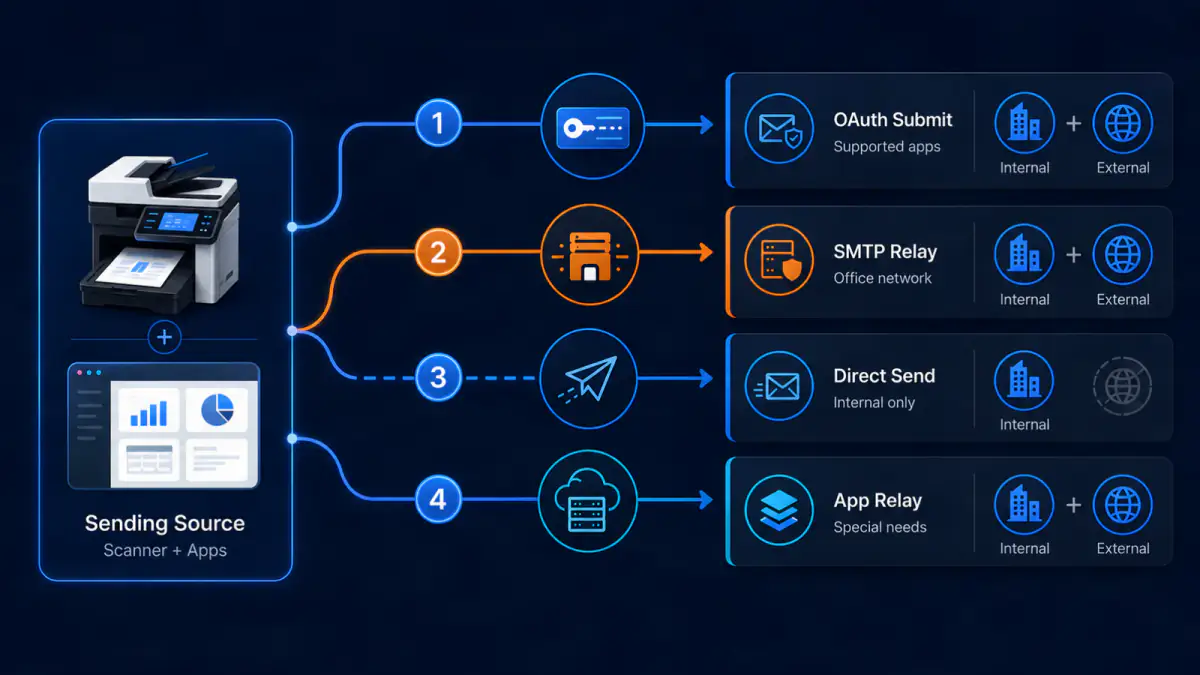
Microsoft documents several supported patterns for sending mail through Microsoft 365. There is no single replacement that fits every scanner and application.
Option 1: Client SMTP submission with OAuth
If the device or application supports OAuth for SMTP AUTH, this is the closest modern replacement for username-and-password client submission.
Microsoft 365 supports OAuth for SMTP, but the application must know how to obtain and present an OAuth token. For custom software, that usually involves registering an application in Microsoft Entra and granting the appropriate SMTP permission. For commercial software or a copier, support depends on the vendor and firmware.
Client SMTP submission can send to recipients inside and outside the organization. Microsoft recommends port 587, TLS or StartTLS, and TLS 1.2 or later. The sending identity also needs the correct permission if it sends as a different address.
The hard part is rarely the Microsoft 365 setting. It is whether the product supports OAuth correctly and whether someone can maintain the application registration, permissions, certificate or secret, and renewal process.
Option 2: Microsoft 365 SMTP relay
SMTP relay is often a practical choice for office devices that cannot use OAuth but sit behind a stable business internet connection.
A Microsoft 365 connector can identify the sending system by a TLS certificate, which Microsoft recommends, or by a static public IP address. The device sends through the organization's Microsoft 365 mail endpoint, generally over port 25. This method does not require a licensed mailbox for the sender and can deliver to internal and external recipients.
Relay needs careful setup. The connector should accept mail only from the intended certificate or public IP. The network must allow the traffic. If an IP address changes, is shared with another organization, or develops a poor sending reputation, delivery can fail. The configuration must never become an open relay that strangers can abuse.
This option is generally better suited to a controlled office network than to an application hosted by an unrelated third party.
Option 3: Direct Send for internal recipients
Direct Send can deliver messages to recipients inside the organization's Microsoft 365 tenant without authenticating to a mailbox. It does not relay mail to external recipients.
That limitation can be acceptable for a scanner that sends only to an internal shared mailbox. It is not suitable for an invoicing system that emails customers or an application that sends notifications to outside addresses.
Because Direct Send is unauthenticated, it must be scoped and monitored carefully. Do not expose a device or relay broadly to the internet just to preserve a convenient scan-to-email workflow.
Option 4: An internal relay or another email service
Some organizations use an internal SMTP relay to accept mail from trusted devices, then send it onward through a supported Microsoft 365 method or another transactional email service. This can reduce the number of devices that need direct Microsoft 365 integration.
It also creates an infrastructure dependency. The relay must be secured, patched, monitored, backed by a clear owner, and configured to prevent unauthorized sending.
For custom or high-volume applications, a transactional email platform, Azure Communication Services Email, or an application API may be a better fit than mailbox-based SMTP. That is an application decision, not merely a port change. Delivery requirements, sender identity, logging, volume, privacy, and vendor support should determine the choice.
Avoid the quick fixes that create a larger problem
When scan-to-email fails, the pressure to restore it can lead to shortcuts. Some work for an afternoon and create months of risk.
Avoid these patterns:
- Using an employee's mailbox and password as a device credential
- Disabling security controls across the tenant to support one legacy application
- Reusing one privileged account on every printer and server
- Publishing an unauthenticated relay to the internet
- Assuming an app password is a durable replacement for Basic authentication
- Buying a new copier before checking whether a secure relay would solve the problem
- Enabling a connector for a broad or shared IP range without understanding who else can send from it
- Declaring success after one test email without checking outside delivery, replies, logs, and failure alerts
A temporary exception may occasionally be necessary, but it should have an owner, a business reason, a narrow scope, an expiration date, and a tested replacement plan. Our Microsoft 365 security checklist covers the wider tenant controls that should remain intact while this compatibility work is completed.
Test the workflow, not just the connection
A successful SMTP handshake does not prove that the business process works.
Test the complete path:
- Send the normal message from the actual device or application.
- Verify internal delivery.
- If required, verify delivery to an approved external test address.
- Confirm the visible From address and reply behavior.
- Check attachments, file size, and formatting.
- Review the device log, application log, Microsoft 365 message trace, and any nondelivery report.
- Test what happens when delivery fails.
- Confirm that someone will notice a queued or rejected message.
For a scanner, test a real scan with a harmless document. For an accounting system, use a test invoice rather than a live customer record. For an alerting system, trigger a controlled test event. Keep sensitive information out of screenshots and tickets used to document the result.
Schedule the migration and testing before the end-of-December default change. If a firmware update, vendor project, static IP, firewall adjustment, or application rewrite is required, waiting until messages stop will turn a small dependency into an urgent outage. Our guide to technology vendor management explains why coordination belongs in the plan.
A practical readiness checklist
Your organization is in a reasonable position when it can answer yes to these questions:
- We know which devices, applications, and scripts send email.
- We know which ones use SMTP AUTH with a stored username and password.
- Each sending system has a business owner and a technical owner.
- We know whether each system sends internally, externally, or both.
- The selected replacement is supported by Microsoft and the product vendor.
- Any relay is narrowly scoped and is not open to unauthorized senders.
- Service identities are separate from employee accounts and have only necessary access.
- TLS, ports, certificates, firewall rules, and sender permissions have been verified.
- Complete message workflows have been tested, including failure visibility.
- Any temporary Basic authentication exception has a documented end plan.
If several answers are no, begin with the systems that send invoices, security alerts, customer communications, regulated records, or other time-sensitive messages. A lunchroom copier can wait behind a failed backup alert that nobody would notice.
Find the hidden mail senders before they become outages
Microsoft is not turning off email from scanners and applications as a category. It is moving Exchange Online away from password-only SMTP authentication and toward methods that are easier to control and harder to abuse.
For most businesses, the difficult part is discovery. The scanner in the copy room is visible. The ten-year-old script on a server, the vendor portal using a former employee's mailbox, and the building alert that no one has tested are not.
Inventory those workflows now, choose the smallest supported change for each one, and test the business result. If your Milwaukee-area organization needs help tracing SMTP dependencies or moving devices and applications to a supported Microsoft 365 sending method, Powerful IT Systems can help plan and verify the work without changing systems that already have a safe path.
Sources

Powerful IT Systems · Sussex, WI
Master's degree in Computer Science with 15+ years of hands-on IT experience serving Milwaukee-area businesses.