Microsoft 365 Copilot does not ignore your existing access controls. It works within them. That is exactly why SharePoint permissions deserve attention before Copilot reaches the whole company.
If an employee already has permission to open a proposal, payroll folder, acquisition plan, contract, or old project site, Copilot may use that content when answering the employee's questions. Copilot is not creating the access problem. It can make an old access problem easier to notice because staff no longer need to know where a document is stored or what it is called.
For a Milwaukee-area business preparing for Copilot, the practical question is not simply, "Is Copilot secure?" It is, "Are our Microsoft 365 permissions accurate enough for faster search and AI-assisted discovery?"
Key Takeaways
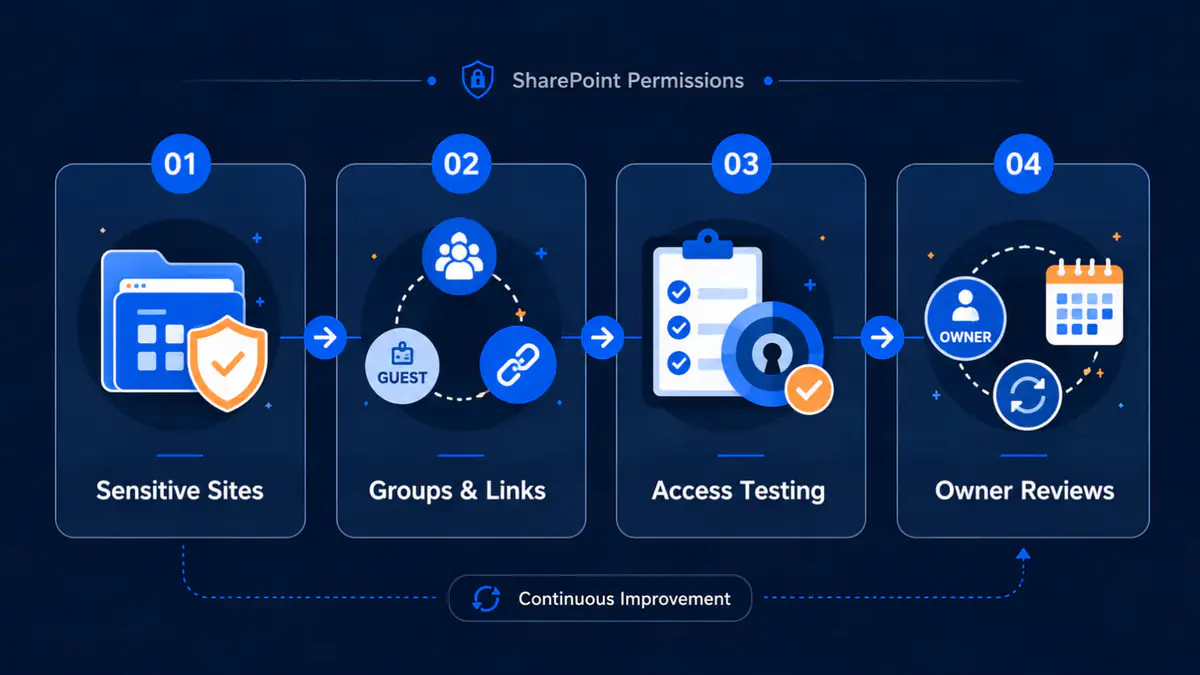
- •Start with SharePoint sites where oversharing would create a real business problem.
- •Review broad groups, guests, shared links, direct permissions, and access that survived a role change.
- •Use Restricted Content Discovery selectively as a temporary review measure, not as a permission repair.
- •Test with representative job roles and continue permission reviews after Copilot launches.
Copilot respects permissions, including the ones you forgot about
Microsoft says Microsoft 365 Copilot surfaces organizational data only when the individual user has at least permission to view it. Its grounding process uses Microsoft 365 content that the current user is authorized to access, such as documents, emails, and chats.
That protection is important, but it depends on the quality of the permissions already inside the tenant.
SharePoint sites often accumulate access gradually. A project team adds a contractor. A department shares a folder with a broad group. An employee changes roles but keeps access to an old site. A link is created for a quick handoff and remains active long after the work is finished. Each decision may have made sense at the time. Together, they can leave far more content available than anyone intended.
Before Copilot, those files might have stayed effectively hidden because employees did not know where to look. Copilot changes the discovery experience. A normal question can bring relevant information forward from several places at once.
That does not mean Copilot bypassed security. It means permission hygiene now matters more. It also makes SharePoint access a different problem from employees pasting data into personal AI tools, which we cover in ChatGPT at Work: What Small Businesses Need to Know.
Start with the sites where a mistake would matter
A small or midsize business does not need to review every SharePoint file manually before it can make progress. Begin with the sites where broad or outdated access could create a real business problem.
Common priorities include:
- Human resources, payroll, benefits, and employee-relations content
- Finance, banking, tax, pricing, and ownership records
- Legal matters, contracts, investigations, and acquisition planning
- Executive or board materials
- Customer information and regulated records
- Vendor credentials, infrastructure documentation, and security procedures
- Old project sites with unclear ownership
- Sites shared with guests, contractors, or former partners
For each site, establish four basic facts: who owns it, what kind of information it contains, who can currently access it, and whether that access is still required.
The owner should be a person who understands the business use of the content, not merely the administrator who maintains Microsoft 365. IT can produce reports and change permissions. The department responsible for the information must decide who genuinely needs it.
Look for broad access, stale access, and unclear ownership
A useful permission review is not a hunt for one bad setting. It is a short investigation into how access grew over time.
Broad access
Check sites and libraries shared with large groups. Broad groups are not automatically wrong. A company handbook may need wide access. Payroll working files probably do not.
The question is whether the audience matches the content. Pay particular attention when a restricted folder sits inside a broadly accessible site or when staff assume that a file is private because few people know its location.
Stale access
Review guests, contractors, employees who changed departments, and old project teams. Offboarding an account helps, but it does not resolve every permission issue. Group membership, guest access, shared links, and inherited access can all outlive the business reason that created them.
Our employee offboarding checklist covers the wider account and access review that should accompany a departure.
Unclear ownership
A site without an accountable owner tends to keep access forever. If no one can explain what a site contains or who should use it, that is a governance problem before it is a Copilot problem.
Assign an owner, classify the content, and decide whether the site should remain active, be archived, or be retired according to the organization's retention requirements.
Use temporary discovery restrictions carefully
Microsoft provides Restricted Content Discovery for organizations that need time to review selected SharePoint sites during a Copilot rollout. It can limit content from those sites in organization-wide search results and Microsoft 365 Copilot responses while permissions and governance controls are being evaluated.
This is a temporary governance tool, not a permission repair.
Restricted Content Discovery does not change existing permissions. Users can still open content they already have permission to access, and the restriction does not cover every Microsoft 365 discovery experience. Microsoft recommends using it selectively for sites that need extra review, such as a finance or human-resources site with a higher risk of oversharing.
It can be useful when a business has identified several sensitive sites but cannot complete every access decision before a planned Copilot rollout. The right sequence is:
- Identify the specific site that needs review.
- Apply the temporary restriction when licensing and prerequisites allow it.
- Confirm the business owner and intended audience.
- Correct groups, guests, links, and direct permissions.
- Validate the result with representative user accounts.
- Remove the restriction when the site is ready.
Do not apply discovery restrictions everywhere and treat the job as finished. That replaces one visibility problem with a long-term governance problem.
Test with real job roles, not only administrator accounts
Permission reports tell you what the tenant believes. Role-based testing shows what employees can actually find and open.
Choose a few representative roles, such as an office manager, salesperson, accountant, project lead, and new employee. Use controlled test accounts where possible. Ask practical questions that could touch sensitive information without exposing real confidential content during the test.
Examples include:
- Can a general employee discover documents from a finance or HR site?
- Can a salesperson find files belonging only to another region or customer team?
- Can a contractor find internal planning documents outside the assigned project?
- Does a new employee inherit access from a group that is broader than expected?
- Can a former project member still open the project site after changing roles?
Record what was tested, what appeared, which permission allowed it, and who approved the correction. This creates evidence that the review happened and gives the business a repeatable process for future changes.
Testing should be performed carefully. Do not copy sensitive results into tickets, screenshots, or email merely to document that they appeared. Record the minimum evidence needed and keep it in an appropriately protected location.
Permission cleanup should continue after Copilot launches
A one-time review can make a rollout safer, but access changes every week. Employees join, leave, and change roles. New sites are created. Vendors are invited. Projects end. Shared links accumulate.
Keep the maintenance process simple enough that it will actually happen:
- Give every important SharePoint site an accountable business owner.
- Review sensitive sites and external access on a defined schedule.
- Include Microsoft 365 groups, guest access, and shared links in onboarding, role-change, and offboarding procedures.
- Require a business reason and an owner for new sensitive sites.
- Remove temporary discovery restrictions after the underlying access review is complete.
- Re-test representative roles after major organizational or permission changes.
- Use audit records and available governance reports to investigate changes and support the review.
The exact schedule and controls should match the organization's risk, contracts, retention duties, and regulatory obligations. Enabling Copilot or completing a permission review does not by itself establish compliance with HIPAA, financial-services requirements, professional obligations, cyber-insurance terms, or another framework.
For a wider tenant review, use our Microsoft 365 security checklist for small businesses alongside the SharePoint permission work.
A practical Copilot permission-readiness checklist
Before expanding Microsoft 365 Copilot, confirm that the business can answer yes to these questions:
- Do we know which SharePoint sites contain sensitive or regulated information?
- Does each priority site have a current business owner?
- Have we reviewed broad groups, guests, shared links, and direct permissions?
- Have role changes and departed users been checked beyond account disablement?
- Have we tested what representative employees can discover and open?
- Are temporary discovery restrictions documented, limited, and assigned for follow-up?
- Is there a recurring process to review access after launch?
If several answers are no, pause the broad rollout long enough to establish ownership and review the highest-risk sites. The goal is not perfect permissions across every file. The goal is to prevent known access problems from becoming easier to discover and harder to explain.
Prepare the information before expanding the tool
Microsoft 365 Copilot can help employees find and use company knowledge faster. That value depends on the information environment underneath it.
Start with the SharePoint sites where the consequences of oversharing are highest. Confirm ownership, correct unnecessary access, test with real job roles, and document what remains. If your Milwaukee-area business needs help reviewing Microsoft 365 permissions or planning a controlled Copilot rollout, Powerful IT Systems can help organize the technical work around your actual teams and information.
Sources

Powerful IT Systems · Sussex, WI
Master's degree in Computer Science with 15+ years of hands-on IT experience serving Milwaukee-area businesses.