Security updates protect Windows computers, but the required restarts can interrupt employees at exactly the wrong time. A restart prompt appears during a client call, while someone is editing a large spreadsheet, or just before a deadline. People postpone it, the computer remains pending, and IT loses a clean view of which devices are fully updated.
Windows 11 hotpatch can reduce that friction. On eligible, properly managed computers, Microsoft can install certain monthly security updates without requiring an immediate restart. It does not eliminate restarts, replace normal patch management, or apply to every update. It changes the schedule so that most quarters have one baseline month with a restart followed by two hotpatch months without one.
For an office that qualifies, that can mean fewer interruptions and fewer delayed security updates. The decision starts with eligibility, management, and reporting, not with turning on one setting and hoping every computer qualifies.

What Windows 11 hotpatch actually does
Microsoft describes hotpatch updates as monthly security updates that install and take effect without restarting the device. Instead of replacing every running Windows component, the update patches supported in-memory code while Windows continues operating.
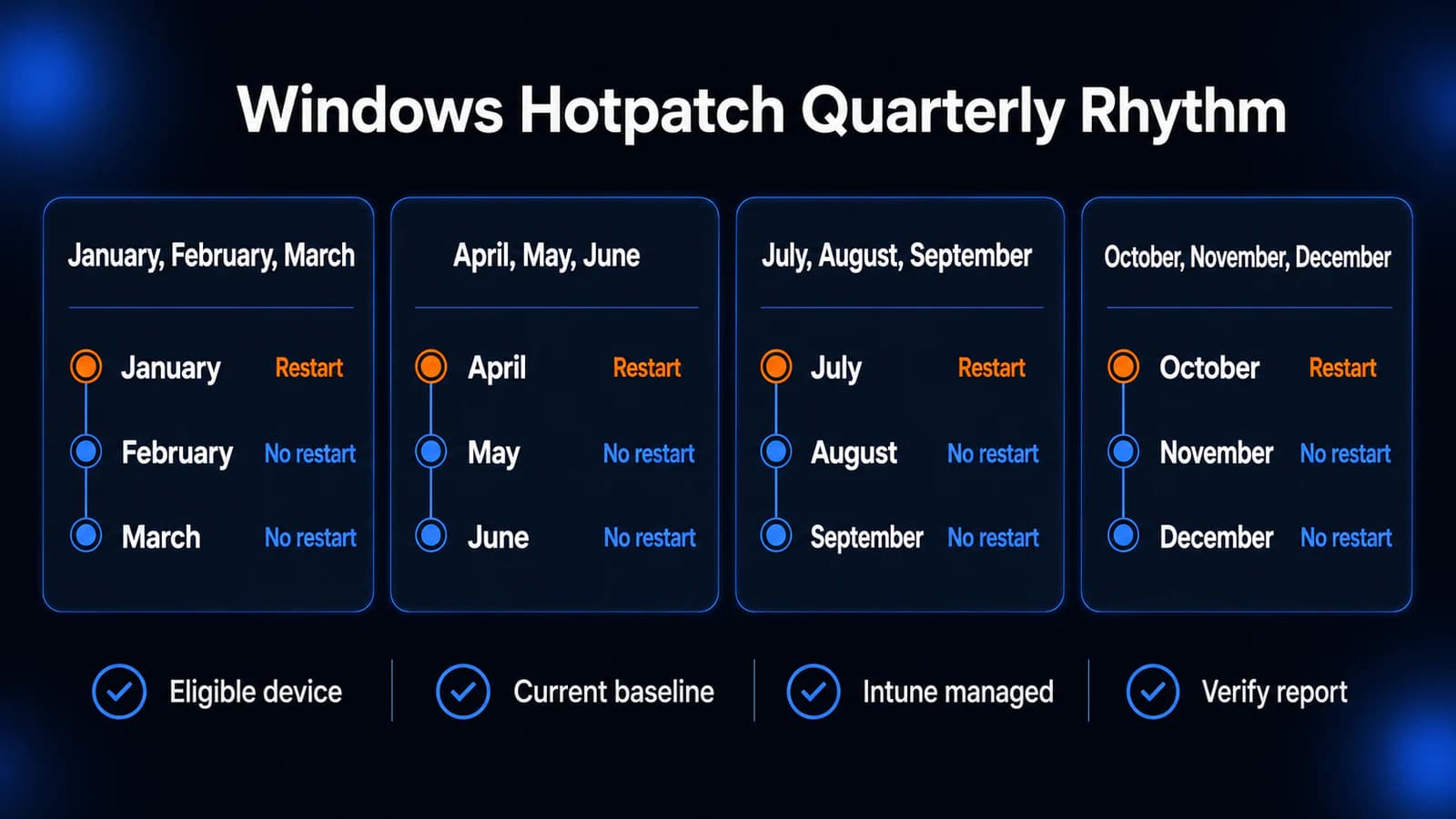
Hotpatch works alongside the normal Windows servicing process. Microsoft still uses baseline cumulative updates to establish a current starting point. Those baseline updates include the latest security fixes, cumulative changes, and other improvements, and they require a restart.
| Quarter | Baseline month, restart required | Hotpatch months, no restart required |
|---|---|---|
| First | January | February and March |
| Second | April | May and June |
| Third | July | August and September |
| Fourth | October | November and December |
That schedule can change when Microsoft needs an additional baseline or releases an out-of-band update. A serious security or reliability problem does not wait politely for the quarterly calendar.
Hotpatch therefore means fewer planned restarts, not zero restarts. A well-managed business still needs defined maintenance windows, restart deadlines, user communication, and someone watching the results.
Which business computers are eligible?
Eligibility is where many hotpatch plans become less simple than the headline.
Microsoft's current Windows 11 hotpatch documentation requires supported Windows 11 versions, Microsoft Intune management, an eligible license, the current baseline update, and virtualization-based security. Microsoft lists Microsoft 365 Business Premium among the eligible licenses. Windows 11 Enterprise, Education, Microsoft 365 F3, and Windows 365 Enterprise licensing may also qualify under the documented requirements.
The exact operating-system version, edition, build, processor architecture, and policy state still matter. Microsoft currently documents Windows 11 versions 24H2 and 25H2 for the active client hotpatch releases. Arm64 devices have an additional configuration requirement because Compiled Hybrid PE is not compatible with hotpatch.
Before planning a rollout, verify these items for every targeted computer:
- The device runs a currently supported and eligible Windows 11 version and build.
- The device is corporate-owned and enrolled in Microsoft Intune.
- The tenant and user licensing provide the required Windows Autopatch and update-management rights.
- Virtualization-based security is enabled and running.
- The latest baseline update is installed.
- The device checks in reliably and can reach Microsoft update services.
A device that does not qualify should receive the normal latest cumulative update instead. That update generally requires a restart, but it keeps the computer on the standard security-update path. Ineligibility should not become an excuse to leave a computer unpatched.
The business case is fewer delayed updates
The strongest reason to consider hotpatch is not that restarts are annoying. It is that restart friction can delay the completion of security updates.
In a professional-services office, one delayed restart may not seem important. Across 40 or 60 computers, however, the exceptions start to accumulate. Laptops are asleep during the maintenance window. Remote employees close the lid. A conference-room computer stays signed in for weeks. An employee repeatedly postpones the restart because a practice-management application is open.
Hotpatch removes the restart requirement during eligible months, which can shorten the time between approving an update and having it take effect. The office still needs to restart during baseline months, but those restarts become easier to plan and communicate because they are less frequent.
Microsoft Intune reporting can separate four different conditions:
- The update installed successfully as a hotpatch.
- The device received a standard cumulative update instead.
- The device is waiting for a prerequisite or baseline.
- The installation failed and needs attention.
That distinction matters during a cyber insurance review, customer security questionnaire, internal audit, or incident investigation. A policy that says computers are updated is weaker than a report showing which computers actually completed the update.
Hotpatch itself does not establish compliance. Contract terms, regulations, insurance conditions, and the sensitivity of the data determine what evidence is required. It can, however, improve the update records used to support those conversations.
What hotpatch does not fix
Hotpatch is a narrower tool than many businesses expect.
It does not patch every application on the computer. Chrome, Adobe applications, accounting software, remote-access tools, printer utilities, browser extensions, and line-of-business programs still need their own update process. The same is true for firmware, drivers, firewalls, switches, and other network equipment.
It does not remove every restart. Baseline updates require one, and certain out-of-band or compatibility updates may require another. A computer that missed the latest baseline may receive both the baseline and current hotpatch, with a restart needed to complete the baseline.
It does not make testing unnecessary. Security updates can still affect applications, drivers, VPN software, printing, scanning, and endpoint-security tools. A small pilot group remains useful before a broad deployment.
It also does not guarantee that every enrolled computer remains eligible. Virtualization-based security can be disabled, a laptop can fall behind on its baseline, or a device can stop checking in. Microsoft states that ineligible devices receive the normal cumulative update, preserving security coverage but bringing the restart back.
Businesses still need a complete patch-management process. Hotpatch improves one part of that process rather than replacing it.
A practical rollout for a 20 to 70 computer office
Start with a report, not a company-wide switch.
1. Inventory eligibility
Export the Windows version, edition, build, processor architecture, Intune enrollment, licensing, virtualization-based security status, and current update state. Separate eligible computers from those that need remediation or a standard update policy.
If Windows 10 computers remain, handle them as a separate lifecycle issue. Our Windows 10 planning guide explains how to decide whether to upgrade, replace, cover temporarily, or retire each device.
2. Pick a representative pilot group
Choose a small group that reflects the office rather than only the easiest computers. Include a standard office user, a remote laptop, an employee who runs a critical business application, and a computer that uses important printing or scanning equipment.
3. Confirm the baseline first
Make sure pilot devices are on the required Windows version and current baseline. Check that virtualization-based security is running and that the devices check in with Intune.
4. Apply the hotpatch policy
In Microsoft Intune, hotpatch can be controlled through the tenant setting or a Windows quality update policy. Assign the pilot devices deliberately and preserve the existing update deadlines, deferrals, and active-hour settings unless there is a specific reason to change them.
5. Watch the first update cycle
Review the hotpatch report rather than assuming enrollment equals success. Investigate devices that receive the normal cumulative update, remain pending, or show an error. Confirm that business applications, VPN access, printing, scanning, and endpoint protection continue working.
6. Plan baseline restarts
Tell employees which months normally require a restart and provide a clear deadline. Avoid payroll, financial close, tax deadlines, and other predictable workload peaks when possible. Hotpatch is most useful when it makes the remaining restarts easier to manage, not when it encourages the office to ignore them.
7. Expand in controlled groups
Move additional devices into the policy after the pilot is stable. Keep exception devices documented with an owner and a reason. Review eligibility and update completion regularly because the state of a device can change.
When hotpatch is worth using
Hotpatch is a strong fit when a business already uses Microsoft Intune, has eligible Microsoft licensing, and struggles with restart delays across a managed Windows 11 fleet. It is especially useful for offices where employees keep long-running applications open or where remote laptops often miss a narrow maintenance window.
It may not justify a separate management project when most devices are ineligible, the business does not use Intune, or restarts already complete reliably with little staff impact. Buying new licensing solely to avoid two restarts per quarter deserves a cost and operations review first.
The practical question is not, "Can hotpatch remove every restart?" It cannot. The better question is, "Will hotpatch help more of our security updates take effect on time while keeping the remaining restarts predictable?"
How Powerful IT can help
Powerful IT Systems can review a Milwaukee-area business's Windows versions, licensing, Intune enrollment, security settings, and update results. We can identify which computers qualify, correct manageable prerequisites, pilot the policy, and keep standard update coverage in place for devices that do not qualify.
The first useful step is a current device and update report. Once you know how many computers are eligible and why the others are not, the decision becomes much simpler. Contact Powerful IT Systems to review the current Windows update state before changing the fleet-wide policy.

Powerful IT Systems · Sussex, WI
Master's degree in Computer Science with 15+ years of hands-on IT experience serving Milwaukee-area businesses.