
Microsoft ended support for Windows 10 on October 14, 2025. Windows 10 computers still turn on, run applications, and connect to the internet, but standard installations no longer receive Microsoft's regular security updates or technical support.
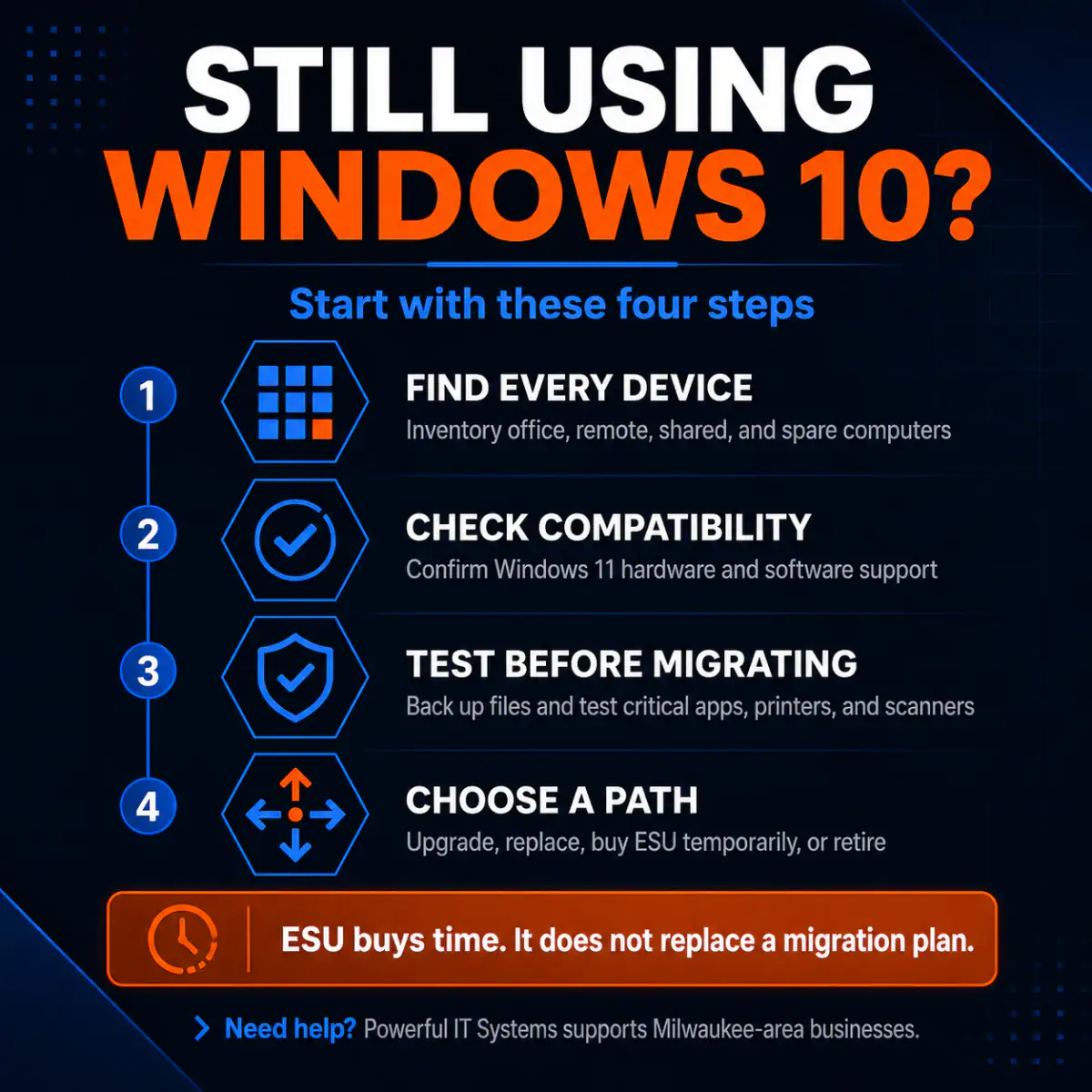
A business that still uses Windows 10 should make a documented decision for each affected computer. You can upgrade compatible computers to Windows 11, replace aging hardware, purchase Extended Security Updates for a limited period, or retire devices you no longer need.
The right choice depends on more than the age of the computer. You also need to consider application compatibility, attached equipment, employee downtime, licensing, backups, and how long the hardware can continue to serve the business.
Key Takeaways
- •Inventory every Windows 10 computer, including remote laptops, spare devices, and systems attached to scanners or specialty equipment.
- •Test business applications and hardware before upgrading the whole office. Windows 11 compatibility alone does not prove that the employee's workflow will work.
- •Use Extended Security Updates only as a temporary bridge tied to a documented migration or retirement date.
- •Assign an owner, decision, and deadline to every remaining Windows 10 computer.
What Windows 10 end of support means
End of support did not disable Windows 10. Employees can still open Outlook, work in Microsoft 365, save files, and print documents.
Microsoft stopped providing standard Windows 10 installations with its normal stream of security fixes. Antivirus and endpoint detection software still provide useful protection, but they cannot repair an operating-system vulnerability that requires a Microsoft patch.
Unsupported Windows computers can also create questions during cyber insurance renewals, customer security reviews, contract bids, application upgrades, and audits involving regulated or sensitive information.
An unsupported computer does not make a company noncompliant by itself. Regulations, contracts, safeguards, and the type of data involved determine compliance. The company should still know which unsupported systems remain in service, why it needs them, and how it limits the risk.
Wisconsin's breach-notification law focuses on unauthorized acquisition of personal information and the required response. An unsupported operating system does not excuse the company from those responsibilities. Our Wisconsin data breach response checklist explains the first steps after a suspected incident.
Start with an accurate inventory
Most businesses can identify their primary office computers. Older Windows 10 devices tend to remain in less visible places:
- Remote employees' laptops
- Spare computers kept in storage
- Reception and conference-room computers
- Shipping or warehouse workstations
- Computers connected to scanners or label printers
- Shared front-desk computers
- Systems that run one older application
- Computers attached to specialized business equipment
On each device, open Settings > System > About. Record the Windows edition, version, processor, installed memory, device name, and system type.
Check whether the computer runs a standard Windows 10 edition or a specialized edition such as Windows Enterprise LTSC or Windows IoT. Some specialized editions have different lifecycle dates. Verify the exact edition before classifying the device as unsupported.
| Inventory field | Why you need it |
|---|---|
| Computer name and assigned user | Tracks the device and identifies who the change affects. |
| Windows edition and version | Confirms support status and ESU eligibility. |
| Manufacturer, model, and processor | Helps determine warranty status and Windows 11 eligibility. |
| RAM and storage | Shows whether an upgrade will provide a good work experience. |
| Applications and attached equipment | Identifies software, printers, scanners, and workflows that require testing. |
| BitLocker recovery-key location | Prevents the migration from locking the business out of its own computer. |
| Decision and target date | Prevents the computer from remaining an open-ended exception. |
Do not depend on employee self-reporting alone. An employee may use a company laptop, a shared reception computer, and an older home computer that connects to the business network.
An RMM platform can collect operating-system and hardware information across a fleet. It will not identify every operational dependency. Someone still needs to determine which applications, printers, scanners, and workflows each employee uses.
Compare the four available options
| Option | Best fit | Main concern |
|---|---|---|
| Upgrade to Windows 11 | Compatible, reliable hardware with supported applications. | Application, driver, and equipment compatibility. |
| Replace the computer | Aging, unreliable, or incompatible hardware. | Buying inadequate hardware based on price alone. |
| Purchase ESU temporarily | A specific dependency delays migration. | Increasing cost without modernizing the computer. |
| Retire the computer | A device with no necessary business purpose. | Leaving data, accounts, or management records behind. |
Option 1: Upgrade compatible computers to Windows 11
Microsoft's Windows 11 requirements include a supported 64-bit processor, at least 4 GB of memory, at least 64 GB of storage, UEFI firmware with Secure Boot capability, Trusted Platform Module 2.0, and compatible graphics hardware.
Microsoft's PC Health Check application can evaluate an individual computer. An RMM or endpoint-management platform can help evaluate a larger fleet.
The minimum requirements tell you whether Windows 11 can run. They do not tell you whether the computer will handle the employee's workload well.
An office employee may run Outlook, Teams, several browser tabs, endpoint protection, document-management software, and an accounting or practice-management application at the same time. Although Windows 11 permits 4 GB of memory, 16 GB and solid-state storage are a more practical starting point for a new office computer. Workloads involving large spreadsheets, design software, databases, or multiple monitors may need more.
Test more than the computer
A compatible computer can still fail the business test. Review accounting software, practice-management applications, VPN clients, Office add-ins, browser extensions, printers, document scanners, USB security devices, backup software, and endpoint security agents.
A scanner may work with a basic Windows driver but lose document routing or naming functions. Accounting software may open but fail to print checks. Test the workflow the employee performs, not only whether the application opens.
Avoid unsupported Windows 11 workarounds
Online instructions can bypass Windows 11 processor, TPM, and Secure Boot requirements. Microsoft does not guarantee support or updates for Windows 11 installed on unsupported hardware. A business should not replace one unsupported configuration with another.
Option 2: Replace aging or incompatible computers
Replacement makes sense when the computer uses an unsupported processor, lacks TPM 2.0 or Secure Boot support, relies on a mechanical hard drive, has recurring hardware problems, lacks current manufacturer drivers, or performs poorly during normal work.
Compare the full cost, including technician time, data migration, application installation, employee downtime, warranty coverage, future repair risk, and expected remaining life.
The least expensive computer on a vendor's website may cost more over its useful life if employees spend years waiting for applications to open or dealing with hardware failures. Match the replacement to the employee's work rather than buying one low specification for everyone.
Option 3: Use Extended Security Updates as a temporary bridge
Microsoft's Windows 10 Extended Security Updates program provides critical and important security updates for enrolled computers after standard support ends.
For organizations and businesses, Microsoft lists Year One at $61 per device through its commercial licensing program. The price doubles in each consecutive year:
- Year One: $61 per device
- Year Two: $122 per device
- Year Three: $244 per device
- Three-year total: $427 per device
Microsoft treats ESU purchases as cumulative. A business that first enrolls during Year Two must also pay for Year One. Microsoft does not sell partial-year coverage.
Commercial computers must meet Microsoft's ESU prerequisites, including Windows 10 version 22H2. Licensing circumstances can vary, so confirm eligibility and purchasing requirements before budgeting from the public price alone.
ESU does not include new Windows features, customer-requested nonsecurity updates, or design change requests, and it does not include general technical support.
Use ESU when a vendor needs more time to support Windows 11, a critical device lacks a compatible driver, replacement hardware is already on order, or the business needs a short testing window. Each enrolled computer should have an assigned owner, a documented reason, and a migration or retirement date.
A separate 2026 issue: Secure Boot certificates
Microsoft is replacing Secure Boot certificates issued in 2011 because some began expiring in June 2026. Administrators should check whether affected computers received the newer 2023 certificates.
The expiration does not mean every affected computer will stop booting. Microsoft says Windows may continue to start and receive standard updates. An unremediated computer may not receive future Secure Boot protection for early boot components.
This issue affects more than the Windows 10 migration decision. Supported Windows computers may also require certificate remediation. Businesses that manage many devices should monitor Secure Boot certificate status rather than assume Windows Update completed every required step.
Option 4: Retire computers you no longer need
Some Windows 10 systems no longer serve a necessary purpose. Identify the person who uses each device, the application or equipment it supports, the data stored on it, and the effect of turning it off.
Before disposal, transfer required data, test access to the transferred files, remove the device from Microsoft 365 and management platforms, securely erase or destroy the storage device, and record the serial number and disposal date.
A factory reset may prepare a computer for reuse, but it does not provide the same assurance as verified data destruction. Use a disposal process appropriate for the data the computer handled.
Test a pilot group before changing the office
A company-wide weekend upgrade can turn one compatibility problem into a Monday-morning outage.
Start with a small pilot group that represents the business: one employee with a standard office workload, one person who uses a critical application, one remote laptop, and one computer connected to an important printer or scanner.
Let those employees perform their normal work for several days. Test printing, scanning, VPN access, shared folders, Microsoft 365, browser extensions, templates, add-ins, and application-specific workflows.
Before upgrading the pilot computers:
- Confirm that required files have a current backup.
- Test the restoration of a few files.
- Check OneDrive synchronization for errors.
- Back up local application databases.
- Record application license information.
- Store BitLocker recovery keys in a business-controlled system.
- Confirm access to administrator accounts.
- Create a rollback plan.
OneDrive synchronization does not replace a complete backup review. Employees may save files outside synchronized folders, pause synchronization, or sign in with the wrong account.
Schedule the rollout around business operations
Avoid scheduling migrations during payroll, financial close, tax deadlines, major client projects, or seasonal workload peaks. Upgrade or replace computers in small groups and verify each group before starting the next one.
After each migration, confirm:
- Windows Update is current and endpoint protection reports to its console.
- Disk encryption is active and the business controls the recovery key.
- Multifactor authentication works.
- The employee does not have unnecessary administrator rights.
- Backup software runs without errors.
- OneDrive and SharePoint synchronize.
- Printers and scanners complete their full workflows.
- VPN, remote access, and business applications work.
- The old computer no longer appears in active management systems.
Common questions
Will Windows 10 computers stop working?
No. They can continue to operate. Standard installations no longer receive Microsoft's normal Windows 10 security updates or technical support.
Must we replace every Windows 10 computer?
No. A reliable computer that meets Windows 11 requirements and supports the company's applications may qualify for an upgrade.
Is the Windows 11 upgrade free?
Microsoft offers a free upgrade for eligible Windows 10 computers. Business licensing varies by edition and agreement, so confirm the license before planning a fleet-wide rollout.
Can antivirus protect an unsupported computer?
Antivirus and endpoint detection reduce risk, but they cannot install an operating-system fix that Microsoft has not provided to the computer.
Is ESU cheaper than replacing a computer?
ESU may cost less for a short delay. Across three years, Microsoft's published commercial prices total $427 per device. Add labor, repairs, and the age of the hardware before comparing ESU with replacement.
Can we isolate a Windows 10 computer and keep using it?
Isolation can reduce exposure when the business cannot migrate a specialized system. Effective isolation requires network controls, restricted accounts, limited USB access, monitored file transfers, and a documented support plan.
Create a decision record for every computer
Use a worksheet to close the project:
| Computer | Purpose | Compatible | Decision | Target |
|---|---|---|---|---|
| Front Desk PC | Reception | No | Replace | August 15 |
| Laptop 07 | Accounting | Yes | Upgrade | August 22 |
| Scanner PC | Document scanning | No | ESU temporarily | October 1 |
| Spare Laptop 03 | Unassigned | No | Retire | August 8 |
Do not leave rows without an owner, decision, and date. Review the list until the business has accounted for each Windows 10 computer.
Sources

Powerful IT Systems · Sussex, WI
Hands-on IT experience serving Milwaukee-area businesses.