
An unfamiliar meeting can appear on an employee's calendar before the employee accepts it. That creates more than clutter. The event title, description, organizer, and links can look like ordinary business activity, especially in offices where staff regularly meet with clients, vendors, applicants, and outside advisers.
Google Workspace administrators now have a practical way to reduce that exposure. They can limit which invitation settings employees may choose, apply the policy by organizational unit or group, and keep unknown invitations out of the calendar until the recipient recognizes or responds to them. The right setting depends on how the office works, but leaving every account on the most permissive option should be a deliberate decision, not an unnoticed default.
What these invitations are and why they show up
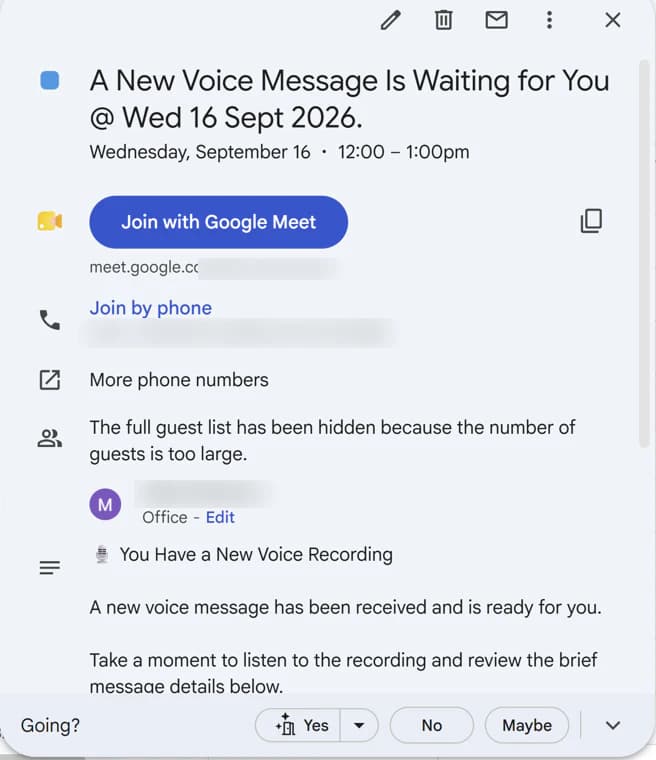
Most people notice the problem the same way: a meeting appears on the calendar from a sender they have never dealt with. The title reads like an invoice, a payment notice, a shared document, a prize, or an account warning. Sometimes the email version landed in spam, yet the event still sits on the calendar with a reminder.
That happens because Google Calendar can add invitations sent to your address before you respond to them. On the most permissive setting, anyone who knows your email address can send an invitation that becomes a visible event. The sender does not need access to your account, and nothing on your computer has been hacked.
Attackers use this because a calendar entry feels more trustworthy than a random email. Check Point researchers reported a campaign in December 2024 where criminals altered sender details so the messages looked like genuine Google Calendar invitations from a known person. The invitations, or attached .ics calendar files, linked to Google Forms or Google Drawings pages, which then led to fake verification steps and pages asking for personal and payment details.
What a malicious invitation can cause
The event itself is usually harmless until someone acts on it. The damage comes from what the invitation asks the recipient to do:
- Stolen passwords: a "join meeting" or "view document" link opens a fake Google or Microsoft sign-in page. A captured password can lead to a compromised mailbox and further fraud from a real company address.
- Payment and invoice fraud: the event describes a charge, refund, or overdue bill and asks the recipient to pay or enter card details.
- Phone scams: the description lists a number to "cancel" a subscription or claim a refund. The caller then pushes for card details or remote access to the computer.
- Malicious downloads: a link or attachment delivers a file the recipient should never open.
- More spam: accepting, declining, or replying can tell the sender that the address is active and read by a person.
Calendar reminders make this more effective. The event pops up on a phone or laptop at the scheduled time, often when someone is busy and more likely to tap without thinking.
If one shows up on your calendar
- Do not click, call, or reply. Skip Accept, Decline, and Maybe, since any response goes back to the sender.
- Report it as spam from a computer. In Google Calendar on the web, open the event, click the three-dot Options menu, and choose Report as spam. This removes the event, and Google has said reporting one event removes other events from that organizer too. The option may not appear in the mobile app.
- Tell whoever handles your IT. If several employees received the same invitation, the administrator can look at the pattern and tighten settings for everyone.
- If you already clicked or entered a password, change that password from a known-good device right away, make sure multi-factor authentication is on, and report it the same day. Speed matters more than embarrassment here.
Change your own setting in two minutes
Any user can reduce this without waiting for an administrator:
- Open Google Calendar on a computer.
- Click the gear icon at the top right, then Settings.
- Under General, click Event settings.
- Under Add invitations to my calendar, choose Only if the sender is known.
Invitations from unknown senders will then arrive as email only, where you can review them first. The change applies to new invitations, so report any spam events already on the calendar. If the option is grayed out on a work account, your Google Workspace administrator controls it, which is where the rest of this article comes in.
Google Workspace admins can now control the boundary
Google announced expanded Calendar invitation controls on August 14, 2026. Previously, administrators could choose a default for new users. The new control can set the least restrictive option employees may select, and it applies to both new and existing users. Google says the setting is available to all Google Workspace customers.
The control is set to From everyone by default. An administrator must change it if the organization wants a stricter boundary.
This does not block outside people from sending invitations. It controls when those invitations become visible events on an employee's primary calendar. Unknown invitations can still arrive by email, where the recipient can review and respond to them.
That distinction matters. The goal is not to prevent legitimate scheduling. It is to stop an unrecognized sender from placing content directly into the calendar without a decision from the recipient.
The three invitation options are not equally strict
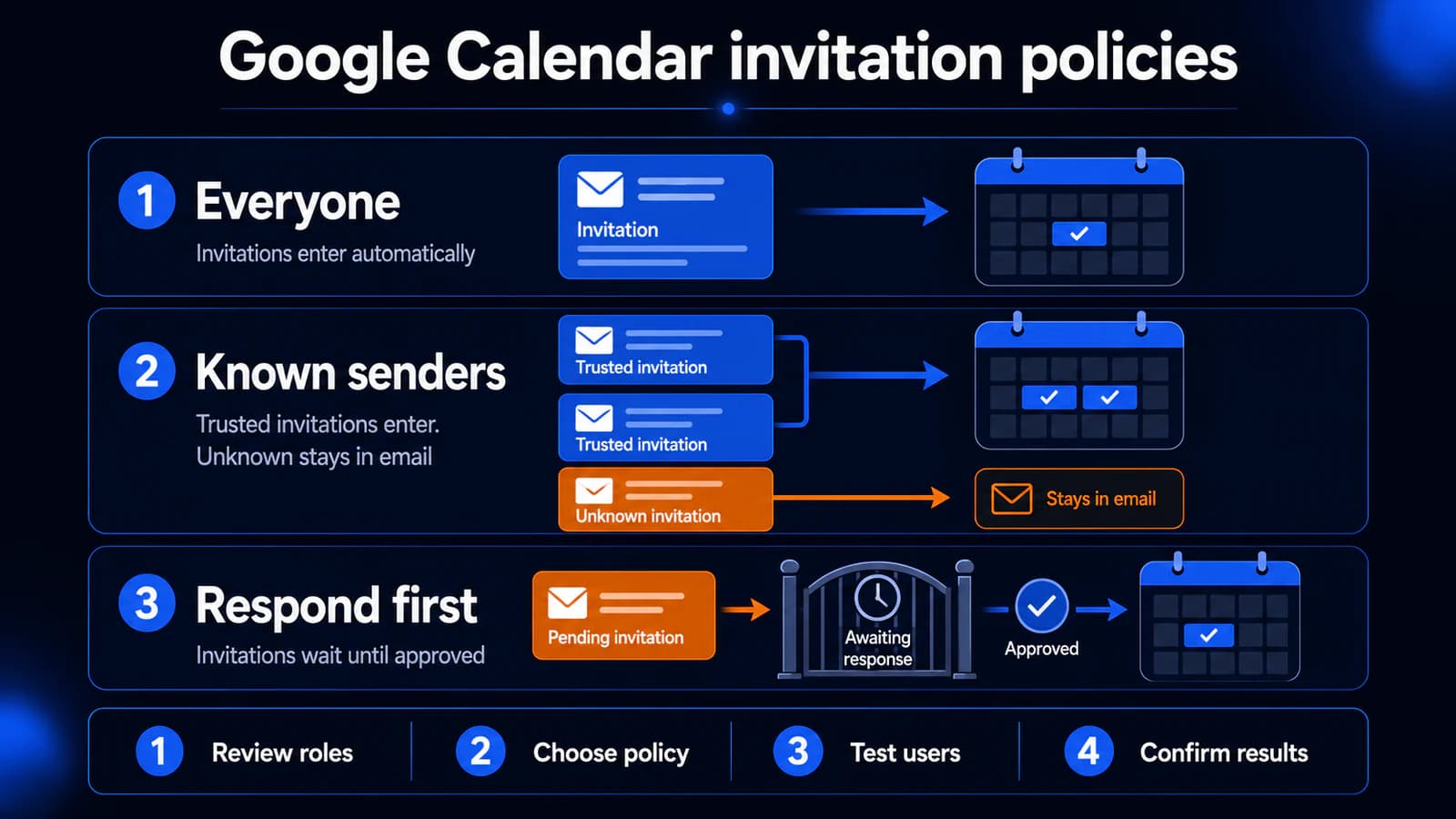
From everyone
All invitations sent directly to the employee are added to the calendar automatically. This is convenient for people who receive frequent first-time meeting requests, but it gives unknown senders the easiest path into the calendar view.
For an employee who rarely receives legitimate invitations from strangers, that convenience may not be worth the noise. For a recruiter, sales coordinator, attorney, consultant, or executive assistant, the answer may be different.
Only if the sender is known
Invitations are added automatically when the sender is in the employee's contacts, belongs to the same organization, or has interacted with the employee before. Invitations from unknown senders stay in email until the employee handles them.
This is often the practical middle ground. Regular clients and coworkers can continue scheduling normally, while a first-time sender does not immediately place an event on the calendar.
There is one privacy detail to consider. Google notes that this option may reveal to a sender that the recipient does not have them in their contacts. That may be acceptable, but it should be understood before the policy is applied broadly.
When I respond to the invitation in email
Nothing is added until the employee responds to the invitation from email. This gives the recipient the clearest control, but it also adds friction. Employees who overlook invitation emails may miss legitimate meetings.
This setting may fit a tightly controlled role or a small group with predictable scheduling. It can be frustrating as a company-wide default if staff routinely receive valid first-time invitations.
Choose the policy around real office work
The safest setting on paper is not always the best setting for the business. If employees work around the control because it interrupts normal scheduling, the policy has missed the point.
Start by grouping users according to how they receive meetings:
- Mostly internal staff: Employees who meet primarily with coworkers can usually use Only if the sender is known without much disruption.
- Client-facing professionals: Attorneys, accountants, consultants, project managers, and similar roles may receive valid invitations from new contacts. Test the stricter setting with a small group before enforcing it.
- Public scheduling roles: Recruiting, sales, intake, and executive support may need more permissive settings or a separate scheduling process.
- Shared or delegated calendars: Confirm how assistants and delegates review pending invitations. Google provides a separate option that controls whether people with permission to view or edit a calendar can see invitations that have not yet been added.
Google lets administrators apply the setting by organizational unit or configuration group. Group settings take priority over organizational-unit settings, so an exception group can be more useful than weakening the policy for the whole company.
This does not need to become a long policy project. A small pilot with a few representative employees can reveal whether valid client meetings are being delayed and whether the rule is reducing unwanted calendar entries.
A practical rollout takes six checks
1. Review the current setting
In the Google Admin console, go to Apps, Google Workspace, Calendar, and Advanced settings. The administrator needs the Calendar administrator privilege to make the change.
Record the current default, the least restrictive level employees can select, and any group or organizational-unit exceptions. Do not assume every account has the same effective setting.
2. Identify roles that receive first-time invitations
Ask department leaders which employees routinely receive legitimate invitations from people they have never contacted. This is a business-process question, not merely a technical one.
A partner at a law firm, an accounting manager, and an internal bookkeeper may all use Google Calendar, but their outside scheduling patterns can be very different.
3. Pick the smallest useful restriction
For many offices, Only if the sender is known is a sensible starting point. It reduces automatic additions from strangers without requiring a response for every established contact.
Do not choose it automatically for every user. Select a stricter or more permissive option only when the role justifies it.
4. Test with a representative group
Include at least one internal employee and one person who schedules with outside contacts. Ask them to test invitations from:
- A coworker
- A saved contact
- A legitimate new contact
- An unfamiliar outside address
- A Google Group, if the company uses group invitations
Google notes that invitations sent through a Google Group can behave differently from invitations sent directly to an employee. Even with From everyone, a group invitation may require the user to respond from email before it is added.
5. Tell employees what changed
A silent settings change becomes a help-desk ticket when someone cannot find an expected meeting. Explain that invitations from unknown senders may remain in email until the employee responds.
Keep the message short: check the sender, review the invitation in email, and verify unexpected links before opening them. The same pause used for a suspicious email should apply to an unfamiliar calendar invitation.
6. Confirm the result after rollout
Google says changes can take up to 24 hours and affect future invitations only. Existing events are not removed by changing the policy.
After the setting has propagated, repeat the test. Confirm that known senders still work as expected and that an unknown sender cannot place a new event directly on the calendar under the chosen policy.
Calendar controls do not replace phishing judgment
A stricter invitation policy reduces one path for unwanted content, but it does not decide whether a meeting is safe. An invitation from a known sender can still be unexpected. A real account can be compromised. A familiar event title can still lead to a fake sign-in page.
Employees should treat an unfamiliar calendar link the same way they would treat an unfamiliar email link:
- Check the organizer's full email address.
- Decide whether the meeting was expected.
- Verify requests involving passwords, payments, files, or account access through another channel.
- Open known services from a bookmark or typed address instead of using a questionable event link.
- Report suspicious invitations to the person or team responsible for IT security.
Powerful IT's phishing email examples explain the same verification habits in more detail. The delivery surface is different, but the decision is familiar: slow down before trusting the sender or opening the link.
Keep Calendar and Drive controls separate
Calendar invitation settings do not control access to Google Drive files. A meeting invitation may include a legitimate or suspicious document link, but the file's permissions are governed elsewhere.
That is why calendar hygiene and file-sharing reviews should be handled as separate checks. The Calendar policy decides when an invitation enters the schedule. A Google Drive external sharing audit answers who can access company files and whether that access still has a business reason.
Keeping those questions separate makes both reviews easier. It also avoids the common mistake of assuming that one Google Workspace security setting protects every part of the platform.
The next useful step
Ask your Google Workspace administrator for two values: the current Add invitations to Calendar default and the least restrictive option employees are allowed to choose.
If both are set to From everyone, decide whether that matches how each department actually schedules meetings. A Milwaukee professional-services office may find that one careful group exception works better than one permissive rule for everybody.
Manage IT can help review the current Google Workspace settings, test a proposed policy with real scheduling workflows, and document the final configuration. The aim is simple: reduce unwanted calendar content without making legitimate client meetings harder to manage.

Powerful IT Systems · Sussex, WI
Master's degree in Computer Science with 15+ years of hands-on IT experience serving Milwaukee-area businesses.