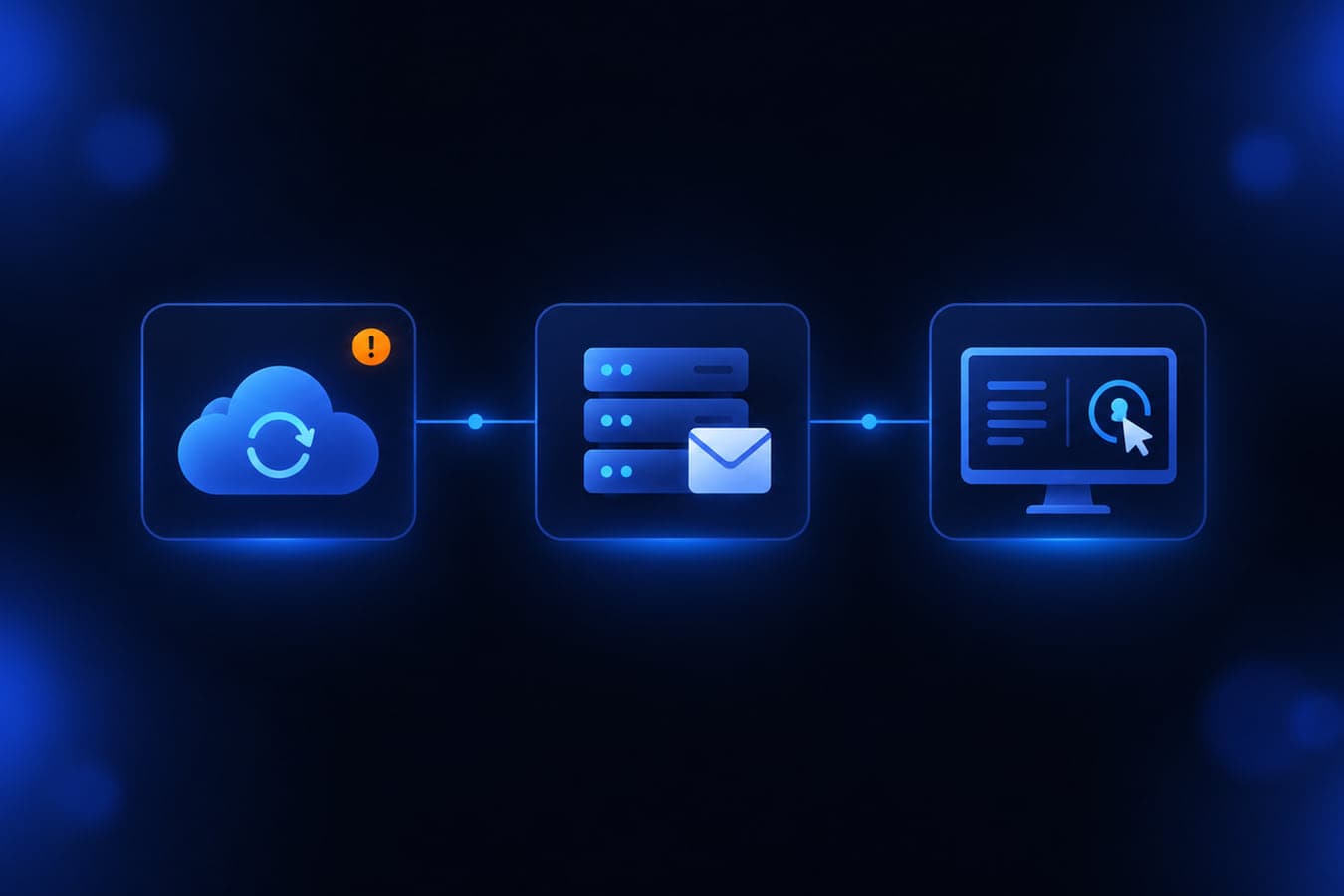
This week's three items have something in common: each one is a tool that IT teams trust with a lot of access. A Microsoft 365 backup app with broad access to customer tenants, the on-premises Exchange server that carries the office's email, and a remote support appliance that help desks use to get into PCs.
The first one matters even if you have never heard of SkyKick. Many offices granted a backup or management app access to Microsoft 365 years ago and forgot about it. That forgotten access is exactly what got abused here.
ConnectWise Cloud Backup (formerly SkyKick) access was used to get into Microsoft 365 tenants
What happened
ConnectWise says it is investigating "unauthorized access to application identities associated with ConnectWise Cloud Backup, formerly known as SkyKick." These application identities are the apps a business approves in Microsoft 365 so the backup service can read mail, files, and Teams data. (ConnectWise advisory)
Security firm Huntress reported on October 16 that a Microsoft 365 credential belonging to the backup service had been compromised and was "being used to gain unauthorized access to customers' M365 environments." In one tenant Huntress investigated, a second ConnectWise app gave itself Global Administrator and then added new credentials to two other apps in that tenant. (Huntress)
ConnectWise disabled seven of its application identities at 07:00 UTC on October 17 and revoked their credentials. As of its October 19 update, Cloud Backup, SaaS Security, and Cloud Management remain suspended. Scheduled backups, archive access, and restores are unavailable, and ConnectWise does not yet have a restoration time. ConnectWise says it has no indication that stored backup archives were compromised, but it also says that finding does not establish whether individual live Microsoft 365 environments were affected.
Who is affected
Any Microsoft 365 tenant where the ConnectWise Cloud Backup or ConnectWise Cloud Management apps (older names: SkyKick Cloud Backup, SkyKick Cloud Manager) were ever approved, including tenants where the connection sits dormant. ConnectWise asks for the checks in every tenant, dormant ones included. MSPs using these services need to check their own tenant and every customer tenant they manage.
What to check or fix now
- In the Microsoft Entra admin center, open Enterprise applications and search for the ConnectWise app IDs. The main two are
506e08f9-6e9a-4da4-942b-a099a03644ae(Cloud Backup) and24205314-2b89-4e07-a2a4-579e898a5640(Cloud Management, MS Teams). ConnectWise's remediation guide lists all seven. Match on the ID, not the display name. - If any of them is still enabled, set "Enabled for users to sign-in?" to No. Disable it, do not delete it: ConnectWise and Huntress both say to keep it for the investigation.
- Export your Entra audit logs and sign-in logs now. ConnectWise notes Entra normally keeps these records for seven days on the Free tier and 30 days on P1/P2, so October 15 activity can age out soon.
- Review activity from October 13 onward for sign-ins from 144.172.64.128, 144.172.64.99, and 144.172.64.60, new credentials added to any app, new role assignments, new consent grants, new users, and Conditional Access changes.
- Huntress warns that disabling the ConnectWise apps does not remove credentials that were already added to other apps. Check the certificates and secrets on all of your Microsoft 365 apps, not just these.
- Do not re-enable the apps until ConnectWise gives formal restoration instructions. While backups are paused, know where else your Microsoft 365 data is protected, if anywhere.
How to prevent it
Review your Enterprise applications list at least twice a year. Remove apps from vendors you no longer use, and question any app that holds admin roles or tenant-wide permissions. Turn on alerts for new role assignments and new app credentials so a change like "a backup app made itself Global Administrator" reaches a person the same day. Our Microsoft 365 security checklist covers the rest of the tenant, and disaster recovery planning covers what to do when a backup service goes dark.
October Windows Server updates can knock on-premises Exchange offline
What happened
Microsoft's Exchange Team says that since the October 13 Patch Tuesday, it has seen reports of Exchange servers becoming unstable after the October Windows Server updates. Symptoms include Outlook on the web failing with "MapiExceptionMdbOffline: Unable to make connection to the server. (hr=0x80004005, ec=1142)" and Event ID 1006 in the Application log, email queues growing during the day, and database availability group (DAG) members failing to reach quorum. A reboot may clear it temporarily. (Exchange Team blog)
Microsoft says the cause is the Windows update, not the October Exchange security update. The Windows release health page lists the issue as "Users might be unable to sign in to OWA or send emails on Exchange Server." (Windows release health)
Who is affected
On-premises Exchange Server 2016, 2019, or Subscription Edition running on Windows Server with one of these updates: KB5126646 (Windows Server 2025), KB5126655 (2022), KB5126651 (2019), or KB5126868 (2016). That includes hybrid Exchange servers kept on-site for management. Microsoft says not every server is hit equally, the impact depends on load, and "Some servers might never see a problem." Offices whose mailboxes are fully in Exchange Online do not run this server.
What to check or fix now
- Do not uninstall the October Windows Server updates. Microsoft says so directly.
- On each Exchange server, from an elevated Command Prompt, run Microsoft's workaround:
reg add "HKLM\SOFTWARE\Microsoft\Rpc" /v EpmapSavedContextCap /t REG_DWORD /d 65536 /f - Reboot the server. In a DAG, do one member at a time.
- After the reboot, watch for Event ID 1006, growing queues, and OWA errors. Microsoft says if the issue comes back, raise the limit.
- Keep an eye on the Windows release health page for a permanent fix.
How to prevent it
Update one Exchange server first and watch it for a full business day before updating the rest. Microsoft says these failures can show up only after some time has passed. Set alerts on mail queue length so a stall gets noticed before users start calling. For other recent mail and Windows Update issues, see the October 9 brief.
BeyondTrust Remote Support has a zero-day that was exploited since August
What happened
On October 15, BeyondTrust published advisory BT26-05 for CVE-2026-102764, a Critical bug (CVSSv4 9.3) in Remote Support that "could allow a remote attacker to perform file operations on an affected appliance." No login is needed. (BeyondTrust advisory BT26-05)
BeyondTrust's blog post on the advisory says a suspected China-nexus espionage actor exploited it as a zero-day. Its timeline starts on August 29, 2026, when the actor hit one BeyondTrust-hosted instance and one self-hosted appliance. CISA added the bug to its Known Exploited Vulnerabilities catalog on October 16 and marked it for forensic triage. (CISA KEV)
Who is affected
Self-hosted BeyondTrust Remote Support on all versions up to 26.2.3. BeyondTrust says SaaS Remote Support customers were patched as of October 9. It also released the patch for self-hosted Privileged Remote Access (PRA), which shares the affected code, and recommends applying it, even though its testing has not found a way to exploit PRA. If your IT provider uses BeyondTrust to support your PCs, ask whether their appliance is patched.
What to check or fix now
- Find out whether your Remote Support or PRA appliance is self-hosted or SaaS.
- For self-hosted appliances on 24.3.1 through 26.2.3, apply the BT26-05-RS patch from the /appliance interface if automatic updates are not on.
- Appliances older than 24.3.1 must be upgraded to a newer version before the patch can be applied.
- Apply the BT26-05 patch to self-hosted PRA appliances too.
- If the appliance was reachable from the internet before it was patched, have it reviewed for signs of compromise. CISA flags this bug for forensic triage.
How to prevent it
A remote support appliance can reach every PC it supports, so treat it like a firewall. Turn on automatic updates if your change process allows it, limit who can reach the admin interface, and make sure someone gets the vendor's security advisories. More on how remote support should be used in when and why you should use remote support.
What to do this week
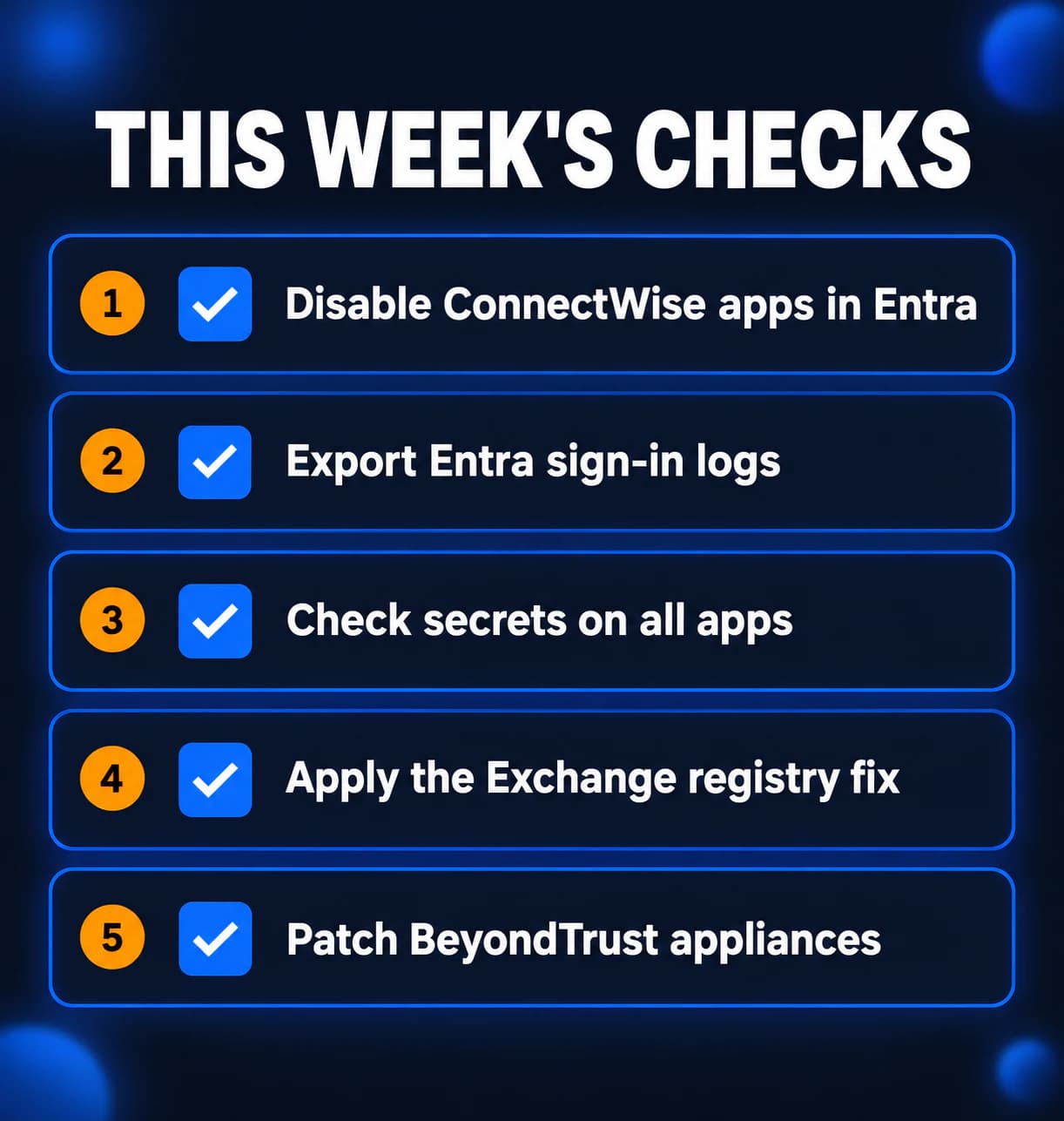
- Search Entra Enterprise applications for ConnectWise or SkyKick apps and disable any that are still on.
- Export Entra audit and sign-in logs and review changes since October 13.
- Check certificates and secrets on all Microsoft 365 apps for anything new.
- Apply Microsoft's registry workaround and reboot on-premises Exchange servers.
- Patch self-hosted BeyondTrust Remote Support and PRA appliances.
If you need someone who can handle these checks for you, reach out to us. We would be happy to help.
Sources
- ConnectWise Trust Center advisory, Cloud Backup (formerly SkyKick) service interruption
- ConnectWise Cloud Backup technical investigation and remediation guide (October 18, 2026)
- Huntress, ConnectWise (SkyKick) vendor credentials abused in M365 attacks
- Microsoft Exchange Team, Exchange servers may become unstable after installation of October 2026 Windows updates
- Microsoft Windows release health, Windows Server 2025 known issues
- BeyondTrust security advisory BT26-05 (CVE-2026-102764), beyondtrust.com/trust-center/security-advisories/bt26-05
- BeyondTrust, ARMORY CASTLE and BT26-05: What Security Teams Need to Know, beyondtrust.com/blog/entry/bt26-05
- CISA Known Exploited Vulnerabilities catalog, CVE-2026-102764
- NVD, CVE-2026-102764

Powerful IT Systems · Sussex, WI
Master's degree in Computer Science with 15+ years of hands-on IT experience serving Milwaukee-area businesses.