Before an AI note-taker joins a client call, decide who can approve the recording, how participants will agree, and who gets the notes afterward. For a Milwaukee office, that means setting a recording policy as well as checking the app's settings.
Start with the tools already connected to staff accounts. Otter, for example, can automatically join Zoom, Google Meet, and Microsoft Teams meetings through synced calendar events.[6] Treat that as a reason to review the calendar connection, not a reason to ban useful meeting notes.
Wisconsin's recording rule is not your whole policy
Wisconsin Statute 968.31(2)(c) provides an exception for a person not acting under color of law who is a party to the communication, or where one party has given prior consent, subject to the provision's exceptions for criminal, tortious, or other injurious purposes.[2] The statute also provides a civil cause of action for certain unlawful interception, disclosure, or use.[2]
That is more qualified than saying, "Wisconsin is a one-party state, so every meeting bot is fine."
Do not use that shorthand as approval for a vendor's bot to record any call it can join. Ask your attorney how the rule applies to your recording setup, client obligations, and calls involving people outside Wisconsin. This article is operational guidance, not legal advice.
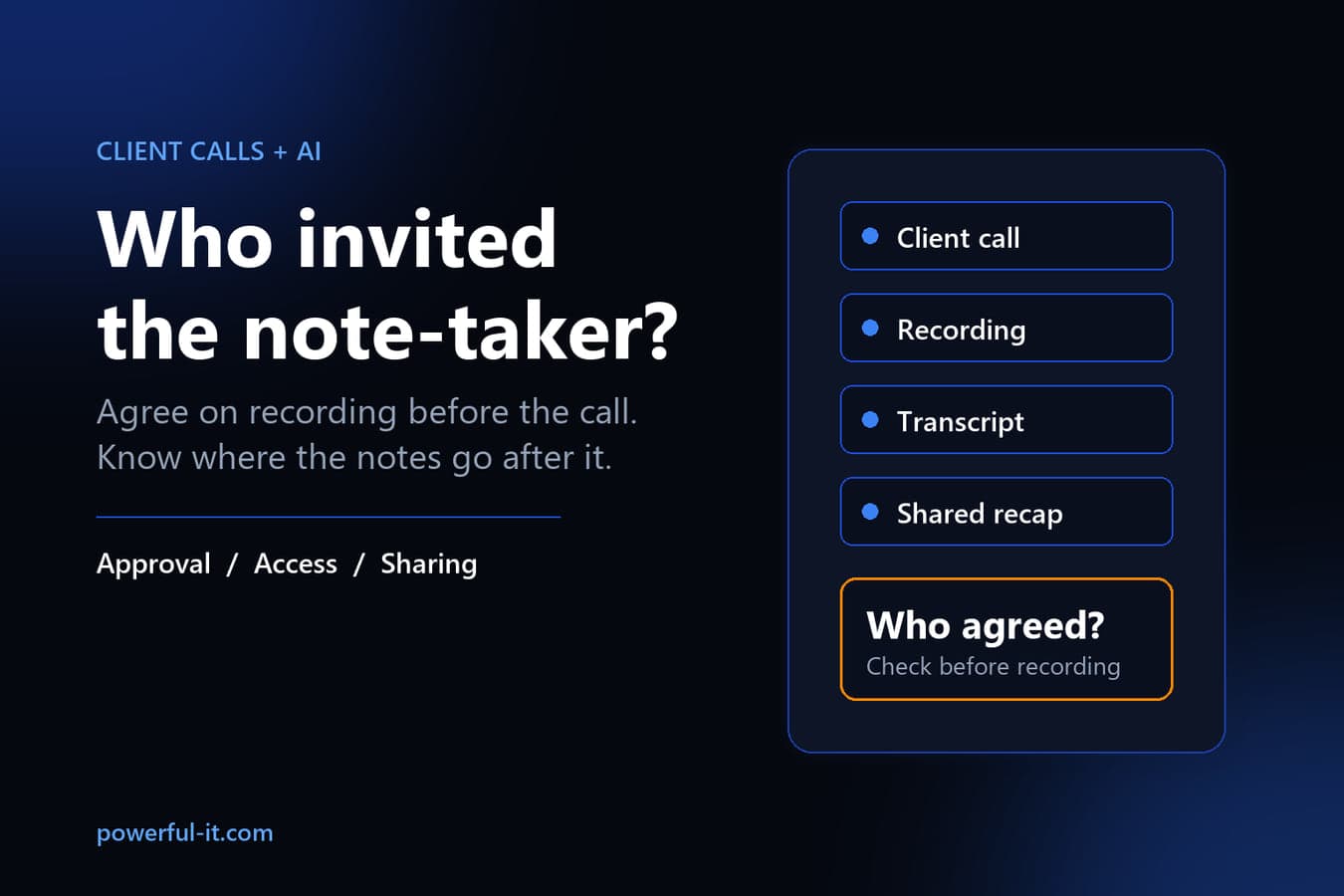
For day-to-day use, adopt a clear office rule: use only approved tools, explain the recording before it starts, and obtain the agreement your policy requires. If someone declines, leave the bot out and take ordinary notes. Have counsel review the rule for sensitive client work.
An opening can be simple: "We would like to use our approved note-taker to record and transcribe this call. Are you comfortable with that? We can leave it off."
Check what the bot will join next
Ask staff which meeting note-takers they use, including tools connected through work sign-in and tools held in personal accounts. Record each tool's owner, connected calendar, and whether it is approved for client conversations.
Then inspect the actual join settings. In Otter, selecting Meetings I manually select changes the default auto-join behavior.[6] But events previously toggled on or off keep their individual settings, so changing the default is not enough: review upcoming calendar events too.[6]
Use that distinction in your check. Look at a recurring client meeting and the next external call, not just the account settings screen. For any other vendor, read its own documentation rather than assuming Otter's controls apply.
If a tool is not approved, ask its owner to stop automatic attendance while IT reviews it. Do not delete existing notes without checking your firm's recordkeeping and preservation requirements.
Review app permissions, not just the attendee list
Microsoft Entra user consent settings control when users can grant applications permission to access organizational data.[4] Ask your Microsoft 365 administrator to review the connected apps and their permissions, alongside the list staff provide.
For future approvals, consider requiring administrator review or limiting consent to an appropriate set of applications and permissions. Microsoft's documented limited-consent option includes verified publishers and apps registered in your tenant, with permissions classified as low impact.[4] Choose the setting with your IT provider so legitimate workflows have a route to approval.
There is an important catch: changes to user consent settings affect future consent operations, not existing grants.[4] Ask for a separate review of permissions already granted. A new approval policy is not evidence that yesterday's calendar connection has been removed.
Keep the business decision with the office: which tools are acceptable, which client conversations are off limits, and who owns the records. IT can then configure the approved boundaries.
Teams recording controls need their own check
Teams has a policy setting that requires participants to give explicit agreement to recording or transcription in meetings created by organizers covered by that policy.[3] Ask your administrator whether that setting fits your client meetings, then test the participant experience before relying on it.
Keep this separate from the third-party note-taker review. A Teams recording policy should not be treated as proof that every external app, bot, or recording method has been controlled. Test each approved tool and document the result.
Also decide what the host should do when an unexpected note-taker appears. A useful rule is to pause the conversation, identify who invited it, and resolve approval before discussing client information.
Follow the notes after the call
A recording decision is incomplete until someone checks the sharing settings. Otter's calendar-event settings, for example, include automatically sharing a conversation with all event guests, as well as a Don't Share option.[5] Review the actual account and event settings rather than assuming notes stay with the organizer.
Native Teams meeting recordings follow a different storage path: private-meeting recordings go to the organizer's OneDrive, while channel-meeting recordings go to SharePoint.[3] Guests and external attendees can view the recording only if it is explicitly shared with them.[3]
For each approved tool, write down where recordings and transcripts are stored, who can open them, whether recaps are sent automatically, and who manages retention. Ask the vendor to explain deletion and any copies retained outside your Microsoft 365 environment. Do not promise a client that a transcript has been removed until the responsible person has checked the relevant system.
The broader ChatGPT at work guide covers boundaries for information staff put into AI tools. For meeting bots, the immediate job is narrower: approve attendance and recording, then control the resulting notes.
Finish an office review with these five checks
Use an afternoon to establish the facts and assign unresolved items, rather than promising that every technical change will be finished that day.
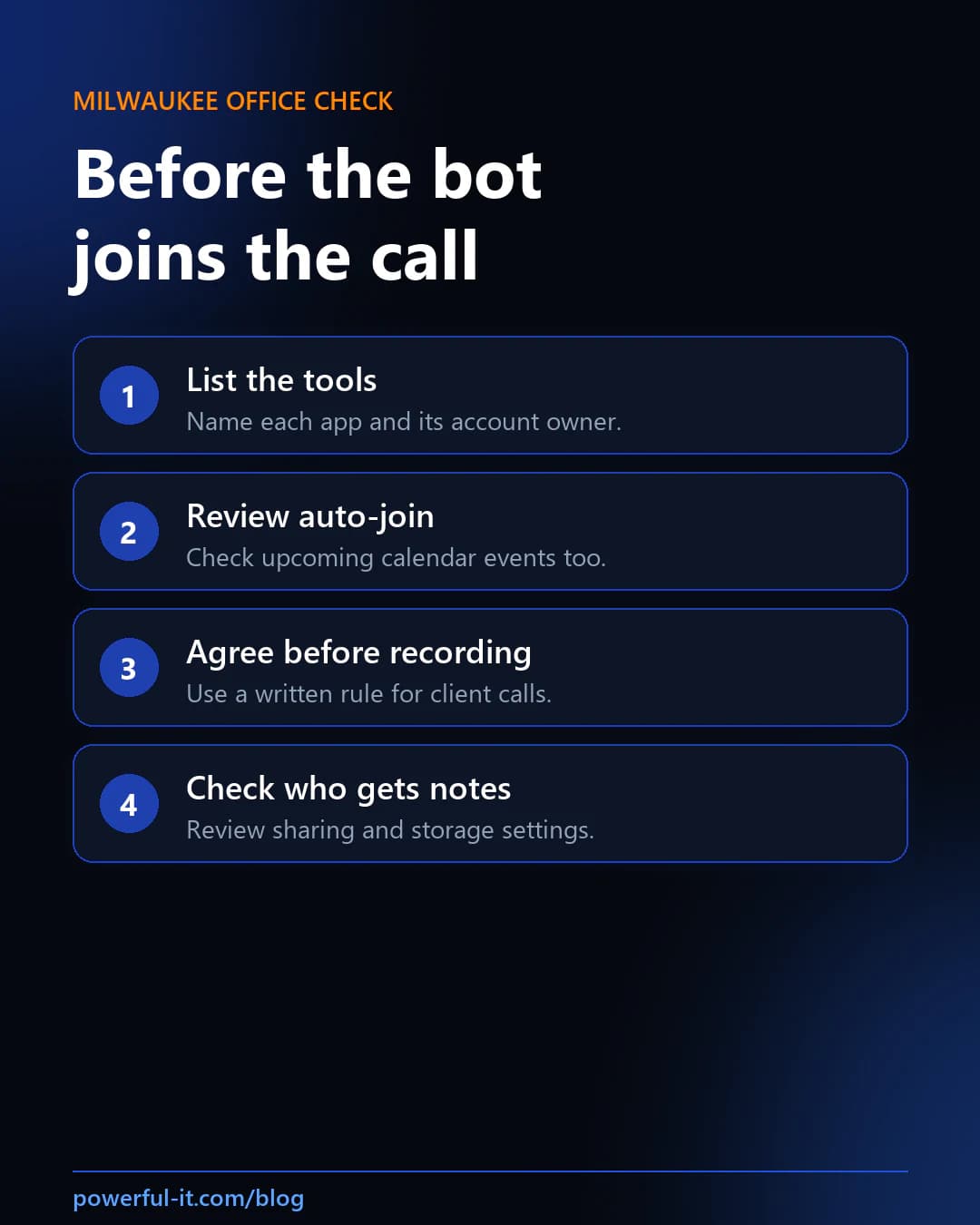
- Make the inventory. List each note-taker, account owner, connected calendar, and approval status.
- Inspect upcoming meetings. Review automatic attendance and individual event overrides. Capture the settings you checked.
- Write the client-call rule. Name who approves tools, how the host asks for agreement, and what happens if someone declines. Send legal questions to counsel.
- Request the IT review. Ask for app permissions, existing consent grants, and Teams recording policies to be reviewed separately.
- Trace one test recap. Use a call with no client information. Confirm who receives the notes and whether the intended people can access them.
Need help with the Microsoft 365 side? Ask Powerful IT Systems to review app consent and meeting settings against the rules your office has chosen. Start today by asking who owns the note-taker on your next client call.

Powerful IT Systems · Sussex, WI
Master's degree in Computer Science with 15+ years of hands-on IT experience serving Milwaukee-area businesses.