This week's three items all hit how people get to work. A Cisco firewall bug lets an outsider reboot the box that runs your remote access VPN, and attackers are already using it. Microsoft has fixed two Windows 11 problems that were breaking VPN and Remote Desktop connections. And a researcher found 319 Chrome extensions that quietly send every search through someone else's server.
For a Milwaukee or Southeast Wisconsin office with staff who work from home or connect in from another site, each one is worth a specific check this week.

Cisco ASA and FTD firewalls: a VPN bug that reboots the firewall is being exploited
What happened
On October 28, Cisco published an advisory for CVE-2026-76418, a flaw in the remote access SSL VPN service of Cisco Secure Firewall ASA and Secure Firewall Threat Defense (FTD) software. An attacker who is not logged in can send a crafted request to the VPN login service and make the firewall reload. Cisco says, "In October 2026, the Cisco PSIRT became aware of active exploitation of this vulnerability." (Cisco advisory) CISA added it to its Known Exploited Vulnerabilities list on October 29.
This is a denial of service, not a break-in. But when the firewall reloads, everything behind it drops: internet, site-to-site links, and every remote worker on the VPN.
Who is affected
Cisco ASA or FTD firewalls that meet all three of Cisco's conditions:
- running a vulnerable software release
- the SSL remote access VPN login service is reachable
- secondary authentication is set on a tunnel group, including the default group, DefaultWEBVPNGroup
Cisco says a successful VPN login is not required to reach the affected code.
What to check or fix now
- Check whether
webvpnis enabled on any interface. On FTD, look under Devices > VPN > Remote Access in Firewall Management Center, or Remote Access VPN in Device Manager. - Check every tunnel group, including DefaultWEBVPNGroup, for
secondary-authentication-server-group. - Upgrade to a fixed release from Cisco's table. A few examples: ASA 9.18.4.96, 9.20.4.50, or 9.22.3.200; FTD 7.2.13, 7.4.9, or 7.6.7. Use the Cisco Software Checker to confirm the right build for your release train.
- If you cannot upgrade right away, Cisco describes a temporary mitigation: disable the tunnel group list, or remove secondary authentication from DefaultWEBVPNGroup. Cisco warns that with secondary authentication removed, "the security posture is lowered for remote access VPN," so treat it as a stopgap.
How to prevent it
Keep a record of which firewall model and software release you run, and who is responsible for updating it. Exploited VPN bugs on edge firewalls keep coming, and the offices that patch fastest are the ones that already know what they have. More on what the firewall does for a small office in why your business needs a strong firewall, and how we handle it in managed firewall services.
Windows 11: the October 28 preview update fixes Always On VPN and Remote Desktop failures
What happened
Microsoft released KB5127936 on October 28. It is an optional preview update for Windows 11 25H2 and 26H2, and it fixes two connection problems that started with September's updates.
- Always On VPN. After the September security update, Always On VPN connections using automatic protocol selection or protocol fallback "could remain stuck in a Connecting state or fail to connect after an initial connection attempt failed." Some users saw the error "The specified port is already in use."
- Remote Desktop. After the September preview update (KB5124010) or later updates, non-admin users could not connect by Remote Desktop to PCs with Administrator protection turned on. The error is 0xC000000D, "The token that was passed to the function is invalid."
Who is affected
- Offices that use Windows Always On VPN with automatic protocol selection or fallback.
- Offices where staff Remote Desktop into Windows 11 PCs with Administrator protection on. Microsoft notes that Administrator protection is on by default in its Windows 11 24H2, 25H2, and 26H2 security baselines, "unless your organization has configured the policy differently." So you may have it on without anyone deciding to. (Windows release health)
What to check or fix now
- If users report VPN stuck on "Connecting" or Remote Desktop error 0xC000000D, install KB5127936 on affected Windows 11 25H2 and 26H2 PCs, or wait for November's regular update.
- Windows 11 24H2 is also listed as affected by the Remote Desktop issue, but Microsoft says 24H2 Enterprise and Education "no longer receive non-security preview updates." On those PCs, use Microsoft's workaround until a later update fixes it.
- Microsoft's Remote Desktop workaround: temporarily turn off Administrator protection by resetting the "User Account Control Type Of Admin Approval Mode" policy in Intune or Group Policy. Turn it back on once the fix is installed.
- Test one PC first. A preview update is optional and goes to everyone if you approve it broadly.
How to prevent it
Push monthly updates to a small test group a few days before everyone else, and include at least one person who uses the VPN and one who uses Remote Desktop. Connection problems like these show up on day one. September's updates already caused one Remote Desktop problem, covered in the Cisco Email Gateway, Remote Desktop, and vCenter brief. For why a steady update routine matters, see why software updates are your first line of defense.
319 Chrome extensions were caught hijacking searches
What happened
On October 29, Socket researcher John Tuckner published a report on 319 Chrome extensions, installed by about 13.4 million users across ten years, that take over the browser's default search engine. They pose as PDF converters, manual finders, "safe search," and AI search tools. Every search goes through the operator's server first, then on to Yahoo or Bing with a partner code so the operator gets paid. (Socket)
Socket points out two risks beyond the ad money. The operator sees your full search history. And the server decides where each search ends up, so it could send some searches to "a phishing page, a fake results page, or a malware lure" without changing the extension at all. Socket says most of these extensions are unlisted in the Chrome Web Store and get installed through pop-up ads on low-quality websites. Many request no permissions, so a quick review can miss them.
Who is affected
Anyone using Chrome who clicked "install" on a PDF, manual, safe search, or AI search helper from an ad. Socket's report names the extensions and their IDs.
What to check or fix now
- Open
chrome://extensionson each PC and remove anything nobody recognizes, especially PDF, manual-finder, "safe search," and search tools. - Open
chrome://settings/searchEnginesand confirm the default search engine is one you chose (Google's steps). - Compare installed extension IDs against the list in Socket's report.
- If the browser keeps changing back, follow Google's steps for removing unwanted programs and resetting browser settings.
How to prevent it
If your office manages Chrome, use the ExtensionSettings or ExtensionInstallBlocklist policy so staff can install only extensions you approve. That one policy stops this whole category.
What to do this week
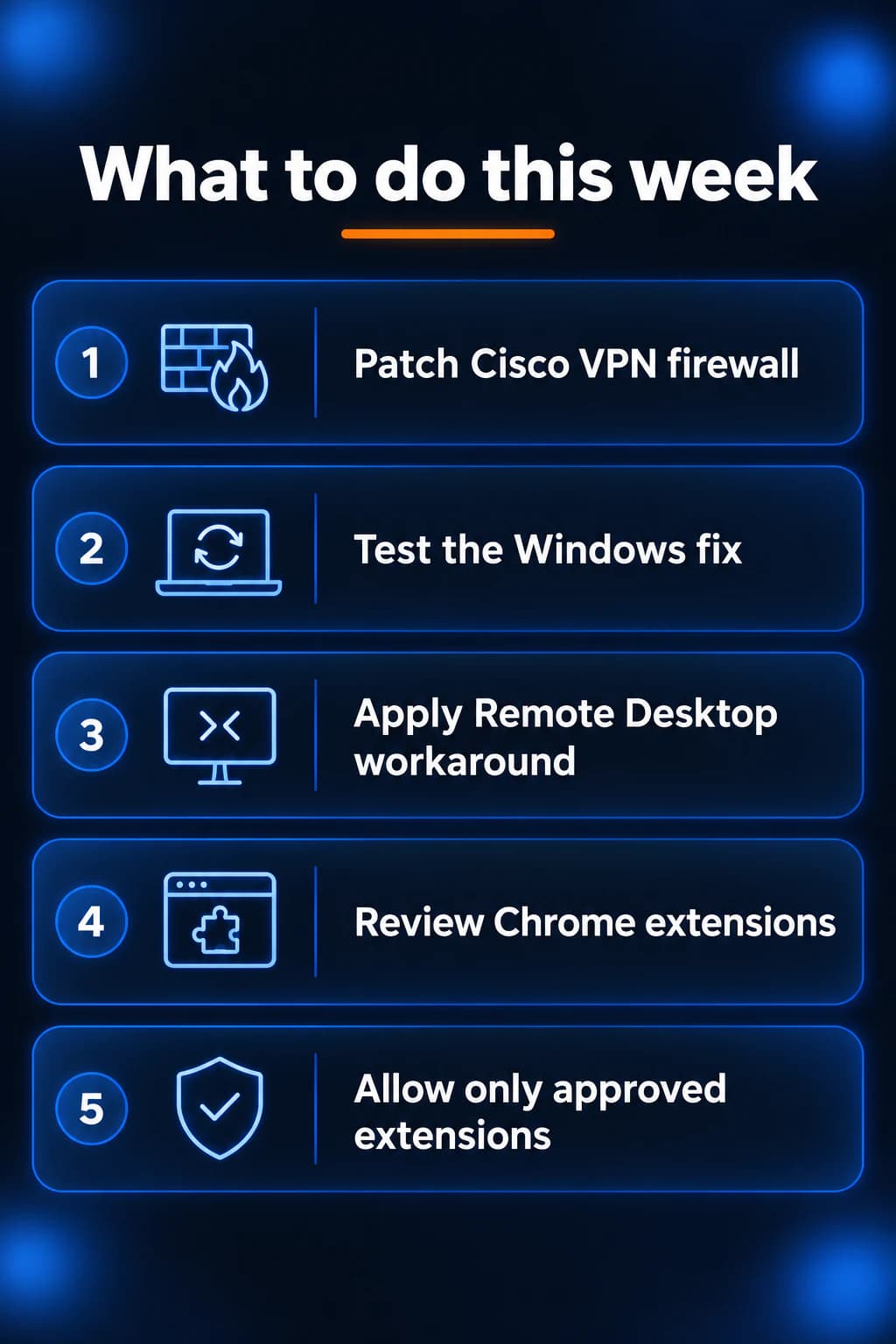
- Find out whether your firewall is a Cisco ASA or FTD running remote access VPN with secondary authentication, and upgrade it to a fixed release.
- Ask users whether VPN or Remote Desktop has been failing since September, and install KB5127936 on a test PC that has the problem.
- On Windows 11 24H2 PCs with the Remote Desktop error, apply Microsoft's Administrator protection workaround and write down when to undo it.
- Review Chrome extensions and the default search engine on every PC.
- If you manage Chrome, turn on an extension allowlist so only approved extensions can be installed.
If you need someone who can handle these checks for you, reach out to us. We would be happy to help.
Sources
- Cisco advisory cisco-sa-asaftd-tunnel-dos-s6mgkb75 (CVE-2026-76418)
- NVD, CVE-2026-76418
- CISA Known Exploited Vulnerabilities catalog
- Microsoft KB5127936 release notes, Windows 11 25H2 and 26H2
- Windows 11 25H2 release health (Remote Desktop issue and workaround)
- Socket, "Searchjacked" report
- Google Chrome Help, remove unwanted ads, pop-ups and malware
- Google Chrome Help, set your default search engine
- Chrome Enterprise policy list

Powerful IT Systems · Sussex, WI
Hands-on IT experience serving Milwaukee-area businesses.