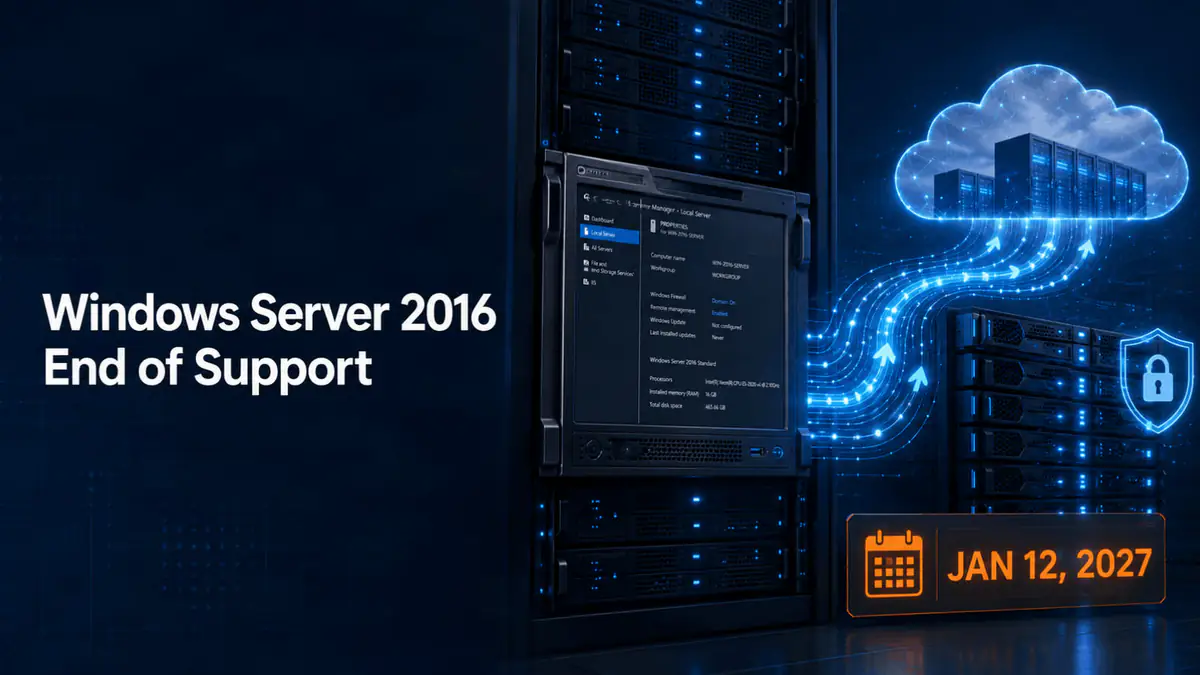
On January 13, 2027, a server running Windows Server 2016 will probably start just as it did the day before. Employees will sign in, files will open, printers will print, and the accounting program may run without complaint.
What changes is Microsoft's involvement. Extended support ends on January 12, 2027. After that date, the operating system will no longer receive the regular security updates and Microsoft support available to current versions, unless an applicable Extended Security Update program is offered and the business obtains coverage.
That uneventful first morning is one reason companies put this work off. The server still runs, so replacing it feels less pressing than payroll, client deadlines, or the next software renewal.
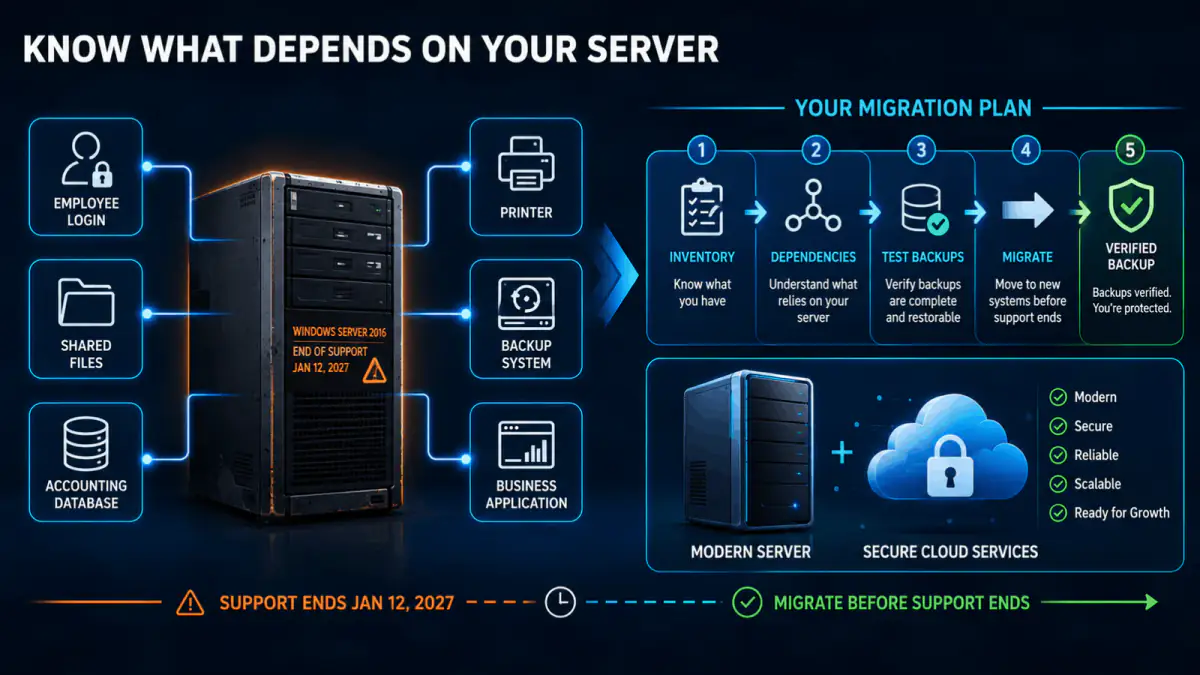
But the operating system is only one piece of the project. An older server might control employee sign-ins, hold shared files, run a database, manage printers, perform backups, or provide licensing for an application the office uses every day. Before choosing new hardware or scheduling an upgrade, you need to know what relies on the current system.
Key Takeaways
- •Inventory every physical server and virtual machine, then document what stops working if each system goes offline.
- •Confirm application, database, licensing, and vendor compatibility before selecting the target Windows Server version.
- •Test restoration, not only backup-job completion, and record the recovery time the business can tolerate.
- •Treat January 12, 2027 as the finish line rather than the day planning begins.
First, find every Windows Server 2016 system
Some businesses have a current server inventory. Others have a machine that was installed years ago, rarely discussed, and quietly became part of the office furniture.
Check every physical server and virtual machine. If an outside IT provider manages the network, ask for an inventory that identifies:
- The Windows Server version and edition
- Whether the system is physical or virtual, along with its hardware age and warranty status
- Its business purpose, installed applications, and databases
- Backup coverage and the date of the last successful restore test
- The person or vendor responsible for each important application
A server name such as FILESERVER or DC01 tells only part of the story. One machine can handle several jobs. A file server might also run print services, issue network addresses, host an accounting database, or provide a license service for another program.
Ask one practical question: if this machine is turned off, who notices and what stops working?
Installed programs won't provide the full answer. Scheduled tasks, service accounts, copiers, scanners, backup jobs, and network devices often connect in the background. Older line-of-business software may depend on a shared folder or database that nobody has documented. Review file shares, services, scheduled tasks, network connections, event logs, and backup settings while the server is still available.
Discovery takes time. Finding one of those dependencies during a planned assessment is far easier than finding it during a weekend cutover after the old server has already been shut down.
What changes after January 12, 2027?
Microsoft lists January 12, 2027 as the end of extended support for Windows Server 2016. Regular security updates and Microsoft support end when the product leaves that phase, unless an Extended Security Update program applies.
The machine won't automatically become unusable. The risk grows over time as new vulnerabilities are discovered and the operating system no longer receives the fixes issued for supported versions. Application vendors may also stop testing their products on it or decline to troubleshoot problems involving an unsupported platform.
Unsupported software doesn't automatically make every business noncompliant. The answer depends on the laws, contracts, insurance terms, and security frameworks that apply to the company. Some insurers, clients, auditors, and software vendors require supported systems, so review those obligations before deciding how long the server can remain in service.
Can Extended Security Updates buy more time?
Microsoft describes Extended Security Updates, or ESUs, as a paid last-resort option for certain older products. They provide security updates for a limited period after normal coverage ends. ESUs do not extend the regular product lifecycle, add features, or provide standard technical support.
As of October 4, 2026, Microsoft's published ESU availability table does not list product-specific dates for Windows Server 2016. A company expecting to run past January 2027 needs to confirm availability, eligibility, pricing, and licensing directly with Microsoft or an authorized licensing partner.
Plan without assuming that ESU coverage will be available. If it is offered, use it to buy time for a defined project, not to postpone the decision indefinitely.
Decide what should happen to each workload
The answer may be different for each server role. Hardware condition, application compatibility, available downtime, licensing, and business risk all affect the decision.
Upgrade the existing installation
Microsoft documents direct in-place upgrade paths from a nonclustered Windows Server 2016 system to Windows Server 2019, 2022, or 2025. The process keeps roles, settings, applications, and data on the same machine.
For reliable hardware with fully supported applications, that may be the quickest route. It also carries the existing configuration into the new operating system. Old drivers, security software, limited disk space, licensing issues, and years of accumulated changes come along for the ride.
Windows may support the upgrade path while the accounting system, database, backup agent, or security software does not. Get written compatibility information from each important vendor. Test the backup and document exactly how the team will roll back if the upgrade fails or an application no longer works.
Domain controllers and other infrastructure roles require a separate review. Microsoft's role and feature guidance identifies which workloads support an in-place upgrade and which need a different process.
Build a new server and migrate the work
New physical or virtual hardware gives the business a clean destination. Data and applications can move in stages, while the old machine remains available during testing.
This is often the practical choice when the hardware is aging, the current configuration is poorly documented, or several unrelated applications share one server. It also provides a sensible time to remove inactive accounts, outdated permissions, and software nobody uses anymore.
Handle each role on its own terms. Active Directory, DNS, DHCP, file shares, certificate services, databases, and print services have different requirements. Microsoft's Storage Migration Service may fit a file-server move. A line-of-business application may require a vendor-led installation, database conversion, or new license.
The fact that two workloads live on the same old machine doesn't mean they need to share the same destination.
Move selected services to a hosted platform
Not every workload has to return to another server in the office. File collaboration tools and some vendor applications have supported hosted options. Our cloud services overview explains where hosted systems can fit into a broader IT plan.
Look past the monthly subscription price. The real comparison includes setup and migration work, internet reliability, access controls, backup responsibilities, ongoing support, and what happens during an internet outage.
Recovery deserves a direct question. Ask the provider how it restores deleted or damaged data and how long a full recovery is expected to take. A cloud subscription by itself doesn't prove that the business can recover within an acceptable timeframe.
Retire what the business no longer uses
Some servers stay online because nobody wants to be the person who switches them off. If the inventory shows that a system no longer supports active work, retire it through a controlled process.
Disconnect it for an agreed observation period before erasing anything. Watch for failed logins, scheduled-task errors, device problems, and employee reports. Preserve required business data, license information, recovery keys, and configuration notes before disposal.
A quiet observation period provides better evidence than an old spreadsheet or someone's memory.
Check the business application before touching Windows
A Windows upgrade can complete successfully while the application employees need on Monday morning fails.
Contact each application vendor before choosing the server version or booking a maintenance window. The useful questions are specific:
- Which Windows Server versions support the application's current release?
- Does the application or its database need an upgrade first?
- Will the move require a new license, activation, or hardware key?
- Does it depend on a particular SQL Server version, .NET release, browser component, or third-party service?
- Will vendor support be available during the planned work?
Get important answers in writing. If the vendor won't support an in-place operating-system upgrade, that answer may settle the decision before any technical work begins.
Microsoft licensing also needs review. The old license may not cover a newer edition, different hardware, additional processor cores, more virtual machines, or Remote Desktop users. Resolve that before purchasing equipment or committing to a schedule.
Prove that the backup can restore the business
A green "completed" message confirms that a backup job ran. Recovery is a separate question.
Start by checking what the job includes. Shared files might be protected while the system state, a database, an entire virtual machine, or application data on another volume is missing. Read the warnings and job details instead of relying on the final status.
Restore several files to a separate location and open them. Then test recovery for the server or its most important application. Record where the instructions, encryption keys, and credentials are stored. Someone other than the person who configured the backup needs to be able to find and use them during an outage.
At least one protected copy should remain away from the server and its attached storage. Otherwise, a hardware failure, ransomware incident, or failed upgrade could damage the working system and its only usable backup at the same time. Our guide to cloud backup and disaster recovery covers the difference between storing a copy and having a recoverable system.
Then put a clock on the test. A successful recovery that takes three days may still be unacceptable for payroll, client files, scheduling, or billing. The business needs to know how long it can operate without that system, not simply whether the data exists somewhere.
Put the migration decisions on paper
A useful plan doesn't need to be a large technical document. It needs to settle the decisions that matter:
- What the server does, who owns each application, and where each workload will move
- Which vendors and licenses are required
- What employees must test before accepting the new system
- When the work will happen and who can approve a rollback
- How long the old server and its data will remain recoverable
Schedule around payroll, tax deadlines, renewals, and major client work. If a Milwaukee office relies on a software vendor in another time zone, confirm that someone from the vendor will be available during the maintenance window.
Build and patch the destination first. During testing, check employee sign-ins, files, printers, applications, integrations, remote access, and backups. Monitor errors and employee reports after the move. The old machine should remain recoverable until the new environment has completed that validation.
January 12, 2027 should be the finish line, not the day planning begins. Older systems have a habit of revealing forgotten service accounts, expired warranties, abandoned software, and integrations known only to one employee. Each one takes time to resolve properly.
When outside IT help makes sense
A business can handle a straightforward project internally when someone understands the server, applications, network, licensing, backups, and recovery process. Bring in outside help when the system runs Active Directory, stores sensitive data, hosts several business applications, uses an older SQL database, or supports work the office cannot continue without.
A sound plan for older servers identifies them, traces application dependencies, compares upgrade and replacement options, tests recovery, and coordinates with software vendors. If you want a second opinion, talk to us; businesses that need ongoing ownership can also review our managed IT services.
Start by getting the inventory. It will tell you whether this is a routine upgrade, a hardware replacement, a larger application project, or a server that no longer needs to exist. That decision needs to be made well before January 12, 2027.
Sources

Powerful IT Systems · Sussex, WI
Hands-on IT experience serving Milwaukee-area businesses.