The program is Microsoft Entra Connect Sync, which many people still know by its old name, Azure AD Connect. Microsoft told customers to be on version 2.5.79.0 or later by September 30, 2026, and says that on older versions all synchronization services will fail once its service change takes effect. A second requirement follows: version 2.6.84.0 or later, with application-based authentication configured, by April 7, 2027.
If someone in your office can tell you which server runs sync, what version it is on, and when it last synced, you are most of the way there. If nobody can, that is the first thing to fix.
The server nobody thinks about
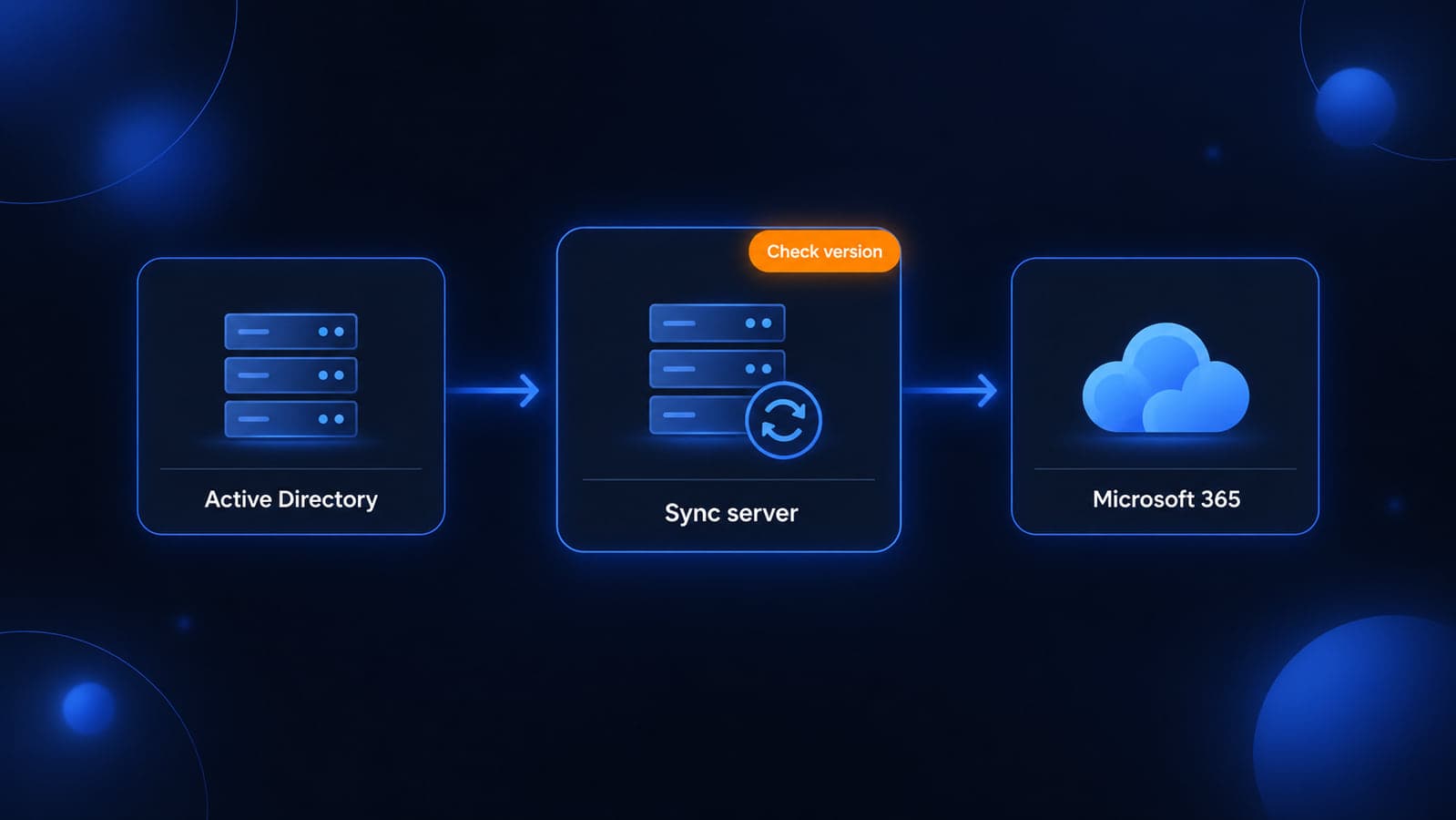
In a hybrid setup, staff accounts live in Active Directory on a server in the office. Entra Connect Sync reads those accounts and keeps matching accounts in Microsoft Entra ID, the identity system behind Microsoft 365, up to date. When it works, nobody sees it. A new hire gets created once, the account shows up in Microsoft 365, and email gets licensed.
That is exactly why it gets forgotten. It was often installed years ago, by a vendor or an IT person who has since moved on, on a server that also does three other jobs. If you have been through an IT handoff where documentation was thin, this is one of the pieces that tends to fall through.
What stops working when sync stops
Sync failing does not take email down. Existing Microsoft 365 accounts keep working. What stops is the flow of changes from Active Directory to the cloud, and that shows up slowly:
- A new hire cannot sign in. The account exists in Active Directory but never appears in Microsoft 365, so there is no mailbox and no license.
- Changes do not carry over. A password change, a name change, or a new group membership made on the office server never reaches Microsoft 365.
- A departed employee stays active in the cloud. Disabling the account in Active Directory no longer disables it in Microsoft 365. That is the one with real security weight, and it quietly breaks a step in your offboarding checklist.
Each of those looks like a one-off help-desk ticket. Three of them in a week is usually the sign that sync is down.
Four checks to run now
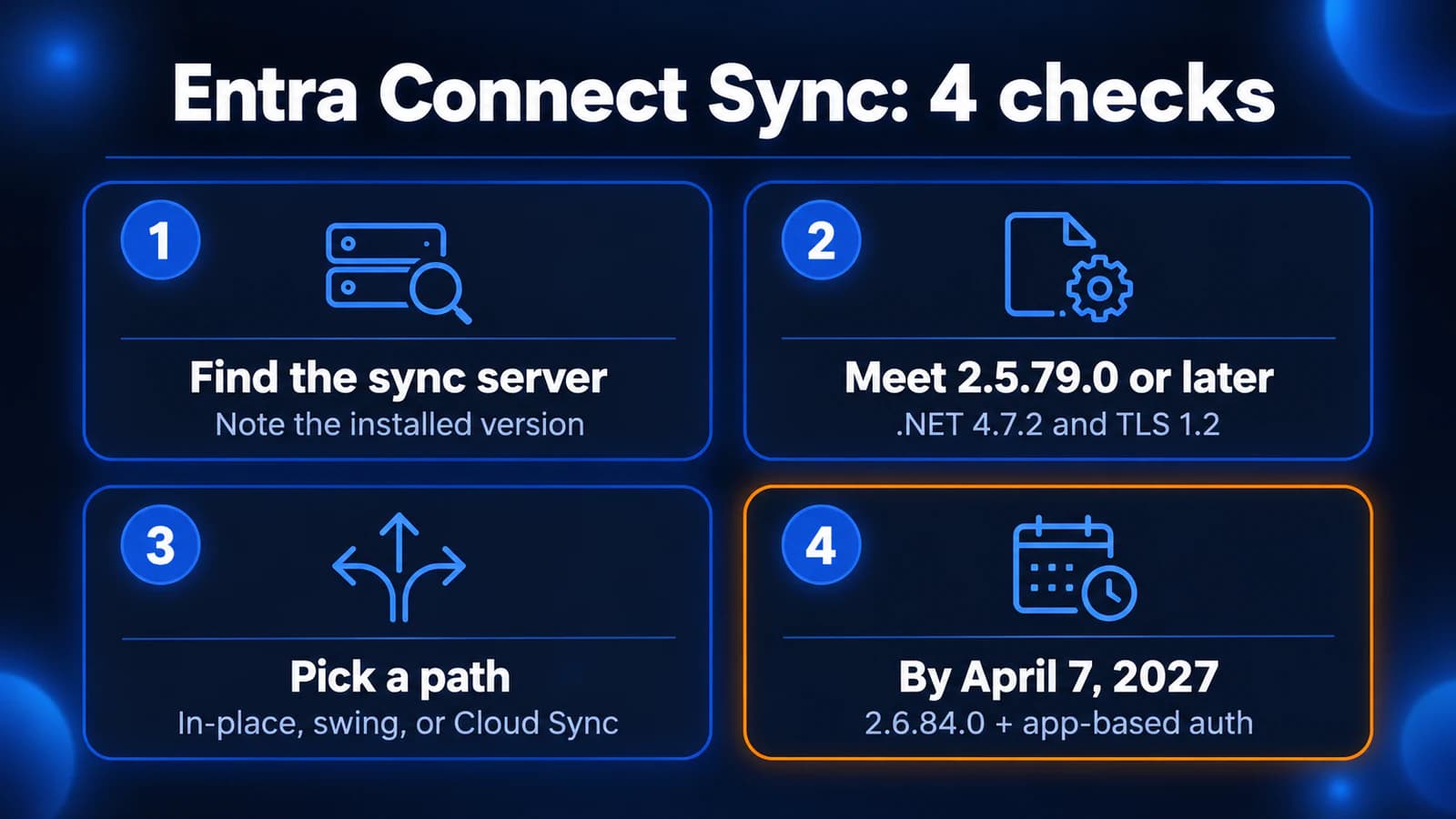
1. Find the sync server and its version
On the server, open Services and look for Microsoft Entra ID Sync with a status of Running. Then go to C:\Program Files\Microsoft Azure AD Connect, open the properties of AzureADConnect.exe, and read the product version on the Details tab. That is the number to compare against 2.5.79.0 and 2.6.84.0.
Also check the Microsoft Entra admin center under Microsoft Entra Connect, which shows sync status and when sync last ran. A last sync time from days or weeks ago answers the question faster than any ticket history.
2. Confirm the basics and whether auto-upgrade is on
Microsoft lists .NET Framework 4.7.2 and TLS 1.2 as minimum requirements. Express installations have automatic upgrade turned on by default, and the PowerShell command Get-ADSyncAutoUpgrade shows whether it is Enabled, Disabled, or Suspended. Microsoft notes that automatic upgrade needs version 2.3.20.0 or later to work, and that not every release is offered through auto-upgrade. Do not assume it already happened. Check the version.
3. Pick the upgrade path
Microsoft documents three realistic options for a small office:
- In-place upgrade. Run the new installer on the same server. Fine for a single, reasonably current server.
- Swing upgrade. Build the new version on a fresh server, then switch over. Microsoft recommends this if you have not upgraded in 12 to 18 months, because older servers carry years of patches and changes it cannot account for.
- Move to Cloud Sync. Microsoft calls Cloud Sync its direction for most organizations. It uses lightweight agents managed from the cloud, and you can run more than one so a single server failure does not stop sync. Check the supported scenarios first, because not every Connect Sync feature has an identical Cloud Sync equivalent.
Whichever path you choose, download the installer only from the Microsoft Entra admin center. Microsoft says that is the only place the current .msi is available.
4. Plan the April 7, 2027 step now
The second requirement is not just another version bump. Today Entra Connect signs in to Microsoft with a connector account that uses a username and password. Microsoft is retiring that and replacing it with an application identity that uses a certificate. The default option lets Entra Connect create and rotate that certificate itself, with a 90-day lifetime, and Microsoft recommends a TPM on the server to protect the private key.
That is a good reason to take the 2.6.84.0 step at the same time as the first upgrade, rather than opening the server twice. It is also a good moment to ask whether that server has a TPM at all.
If sync has already stopped
Microsoft's guidance is direct: upgrade to the latest version to restore sync, and expect sync to have failed for the whole period between September 30, 2026 and the upgrade. After it comes back, review what changed in Active Directory during that gap. Start with accounts that were disabled, because those are the people who may still have working Microsoft 365 access.
One known issue is worth knowing about. Microsoft documents that sync can fail after upgrading to certain versions if miiserver.exe.config was edited earlier, which some environments did for FIPS-related guidance. If the upgrade finishes but sync errors start, check that page before reinstalling.
The next useful step
Get one fact this week: the installed version of Entra Connect Sync and the last sync time. If the version is 2.5.79.0 or later and sync ran in the last hour, put the April 2027 upgrade on the calendar and move on. If it is older, or nobody knows which server runs it, treat it as this month's project.
This sits alongside the rest of your Microsoft 365 security checklist and the move away from SMS sign-in. Accounts that do not sync correctly undermine both.
If you are in the Milwaukee area and want a second set of eyes, we can check the sync server, pick between an in-place upgrade, a swing upgrade, or Cloud Sync, and confirm accounts are flowing again before April.
Sources
- Microsoft Learn: Hardening updates for Microsoft Entra Connect Sync
- Microsoft Learn: Upgrade Microsoft Entra Connect from a previous version
- Microsoft Learn: Microsoft Entra Connect version release history
- Microsoft Learn: Authenticate to Microsoft Entra ID by using application identity
- Microsoft Learn: Microsoft Entra Connect automatic upgrade
- Microsoft Learn: Verify your version of the provisioning agent or Connect Sync
- Microsoft Learn: Migrate from Microsoft Entra Connect to Cloud Sync decision guide

Powerful IT Systems · Sussex, WI
Master's degree in Computer Science with 15+ years of hands-on IT experience serving Milwaukee-area businesses.