Two of this week's items are about the parts of a business that live outside the office: the website and the domain name. A popular WordPress form plugin has a flaw that a security firm says attackers started using on October 5, and the attack leaves behind an administrator account the site owner cannot see. Google also disclosed that attackers took over three country-code domain registries and used that control to get real HTTPS certificates for other companies' websites. The third item is for anyone who hosts Jira, Confluence, or Bitbucket on their own server: Atlassian shipped fixes for a critical file-access bug on October 5.
If your website runs on WordPress or your office owns its own domain name, the first two items apply to you even if you never touch the third.

Ninja Forms on WordPress: update, then look for hidden admin accounts
What happened
Ninja Forms is a contact form plugin for WordPress. Versions up to and including 3.15.3 have a stored cross-site scripting flaw, CVE-2026-94504. An anonymous visitor can put script into a form submission, and "when an Administrator opens the attacker-known direct submission URL, the script runs in the WordPress admin origin." In plain terms: the attacker fills out your contact form, and the attack fires when someone on your staff opens that submission in the WordPress dashboard. (NVD CVE-2026-94504)
Patchstack, a WordPress security company, says it saw this flaw used in attacks starting October 5, one day after the same payload hit a WooCommerce plugin. Patchstack describes the result as a fake plugin called "WP Smart Thumbnails," a new administrator account, a second administrator account that "does not appear in Users → All Users," and a secret login link that signs in as the site's oldest administrator. The plugin's makers and CISA have not published a confirmation of attacks, so treat this as a security firm's report. (Patchstack analysis)
A second, separate flaw, CVE-2026-90438, affects Ninja Forms up to and including 3.15.4 when a Paragraph Text field uses the Rich Text Editor. Version 3.15.5, released September 28, fixes it. (NVD CVE-2026-90438, Ninja Forms on WordPress.org)
Who is affected
Any WordPress site with Ninja Forms 3.15.4 or older. WordPress.org lists the plugin on more than 500,000 sites, and contact forms are common on small business websites. If a web designer or agency runs your site, ask them.
What to check or fix now
- Update Ninja Forms to 3.15.5 or later.
- Updating stops new attacks but does not remove anything already planted. Look on the Plugins screen for "WP Smart Thumbnails" and in the Must-Use plugins view for files you do not recognize.
- Compare the administrator list in WordPress with the list in the database. Patchstack says the hidden account only shows up in the database.
- If you find signs of a break-in, remove the accounts and files, then change every administrator password and replace the WordPress security keys.
How to prevent it
Turn on automatic updates for plugins, or make sure whoever runs your site updates them weekly. Remove plugins you no longer use, and keep the number of WordPress administrator accounts small so an extra one stands out. More on why this matters: the importance of regular software updates.
Attackers got real HTTPS certificates for other companies' websites
What happened
On October 6, Google said attackers compromised the registries behind three country-code domains: .gh (Ghana), .sl (Sierra Leone), and .as (American Samoa). With that control, they "modified authoritative DNS records and obtained unauthorized HTTPS certificates covering several Google domains, as well as domains belonging to other organizations." Google later found "several leading global brands and widely used online services" in public certificate logs. (Google)
Google says its own systems were not breached, and it has "no reason to believe" the certificate authorities that issued the certificates did anything wrong. Chrome now blocks the certificates Google found, and Google says Chrome users do not need to do anything. It also warns that "we cannot guarantee that our analysis identified every affected domain, nor do Chrome interventions reliably protect non-Chrome users."
Who is affected
Directly, any organization with a domain ending in .gh, .sl, or .as. Indirectly, every office that owns a domain name: the lesson is that a certificate for your website can be issued without your knowledge if someone gains control of the DNS behind it.
What to check or fix now
- If you own any .gh, .sl, or .as domains, check public certificate logs for certificates you did not request. Google asks those owners to do this now.
- List every domain your office owns, including old, parked, and regional ones. Google says monitoring should cover the "entire domain portfolio."
- Set up a free Certificate Transparency alert for your domains, so you get an email when any certificate is issued for them.
- Ask whoever manages your DNS whether you have CAA records. These DNS entries name the certificate authorities allowed to issue certificates for your domain.
How to prevent it
Google recommends two habits for domain owners: ongoing Certificate Transparency monitoring and restrictive CAA records. Pair that with strong protection on your domain registrar account, since whoever controls DNS can usually get a certificate. Turn on MFA there and make sure more than one person at the office knows where the account lives.
Atlassian Data Center has a critical file-access bug
What happened
On October 5, Atlassian published fixes for CVE-2026-21589, rated critical (CVSS 9.3). It "allows an unauthenticated attacker to access specific files within the web application root directory." The attacker needs to know the exact file name and path, and the flaw "does not allow attackers to enumerate or list directory contents." Atlassian warns that "in some configurations, there may be sensitive files present that increase your risk." (NVD, Atlassian advisory)
Atlassian says its cloud products are already patched, "our investigation has not found any evidence of exploitation," and cloud customers do not need to do anything. (Atlassian CONFSERVER-104488)
Who is affected
Only self-hosted Atlassian products. These are the fixed versions; anything older is affected:
- Jira Software Data Center: 9.12.40, 10.3.26, 11.3.12
- Jira Service Management Data Center: 5.12.40, 10.3.26, 11.3.12
- Confluence Data Center: 9.2.26, 10.2.19
- Bitbucket Data Center: 9.4.26, 10.2.8, 10.5.1
- Bamboo Data Center: 10.2.24, 12.1.12
- Crowd Data Center: 6.3.7, 7.0.3, 7.1.7, 7.2.4
- Crucible and Fisheye: 4.9.15
Atlassian says versions past end of life may also be affected. If your team uses Jira or Confluence in a web browser at an atlassian.net address, you are on cloud and already covered.
What to check or fix now
- Find out whether anyone in the office runs Jira, Confluence, Bitbucket, or another Atlassian product on its own server. Small teams sometimes set these up years ago and forget them.
- Upgrade to a fixed version, starting with servers that can be reached from the internet.
- If you cannot upgrade right away, take the server off the internet until you can. Atlassian also documents temporary blocking rules in its advisory.
- Check web access logs for signs of past attempts, as the advisory describes.
How to prevent it
Keep a list of every server application you host yourself, with its version and owner. Self-hosted tools that "just work" are the ones that go unpatched longest. Our October 6 FortiMail and Dell System Update brief makes the same point about server management tools.
What to do this week
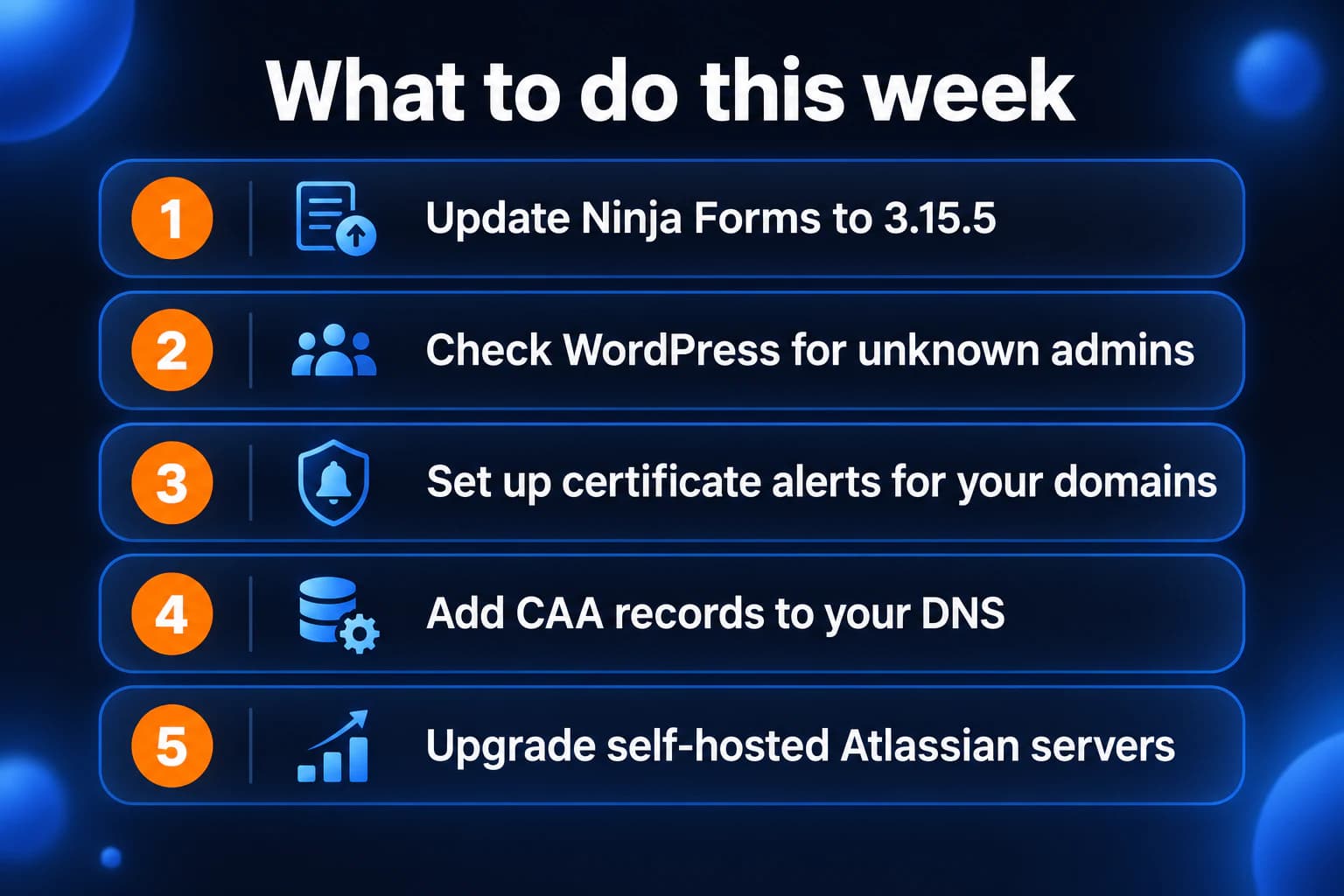
- Update Ninja Forms to 3.15.5 or later on any WordPress site you run.
- Check WordPress for "WP Smart Thumbnails" and admin accounts you did not create.
- List every domain your office owns and set up certificate alerts for them.
- Ask your DNS provider or IT person whether your domains have CAA records.
- Find and upgrade any self-hosted Jira, Confluence, or Bitbucket server.
If you need someone who can handle these checks for you, reach out to us. We would be happy to help.
Sources
- NVD, CVE-2026-94504
- NVD, CVE-2026-90438
- Ninja Forms plugin page and changelog on WordPress.org
- Patchstack campaign analysis (security firm report)
- Google, Chrome's Response to Recent ccTLD Registry Hijacks (October 6, 2026)
- NVD, CVE-2026-21589
- Atlassian security advisory, CVE-2026-21589
- Atlassian issue CONFSERVER-104488

Powerful IT Systems · Sussex, WI
Master's degree in Computer Science with 15+ years of hands-on IT experience serving Milwaukee-area businesses.